
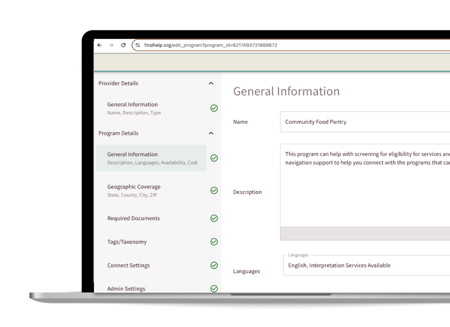
As a registered user, you can expand your local network by adding new programs to the platform in real time.
Strategic growth starts with accurate data; by bringing new providers into the system, you can develop community partnerships that align directly with your organization’s goals. This allows you to build a more comprehensive resource map for your seekers while strengthening your professional relationships with local partners through increased visibility and coordination.
Adding Permissions and Restricted Program Types
While Program Manager allows you to manage many listings, certain program types are restricted to maintain data integrity.
You will not be able to directly add or edit:
-
National programs
-
Programs with confidential office locations
-
Programs tagged as clinical abortion or pregnancy resource center services
If you need to update or add a service in one of these categories, please use the "Suggest an Edit" or "Suggest a Program" links on the site so our data team can review and process the changes for you.
Entering the Program Manager Tool to Add New Programs
Before adding a new program to the platform, it's important to check if it already exists to avoid duplicates. To do this, start by searching on the Suggest a Program page.
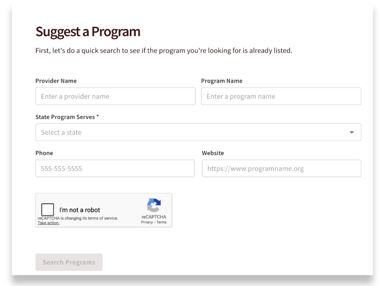
To search the platform for an existing listing, enter the following details:
-
Provider Name
-
Program Name
-
State (where the program offers services)
For more accurate results, you can also include the website and phone number. Once you’ve entered the information, click Search. Review the search results to see if the program is already listed on the platform. If you find a match, you can use Program Manager to update it directly.
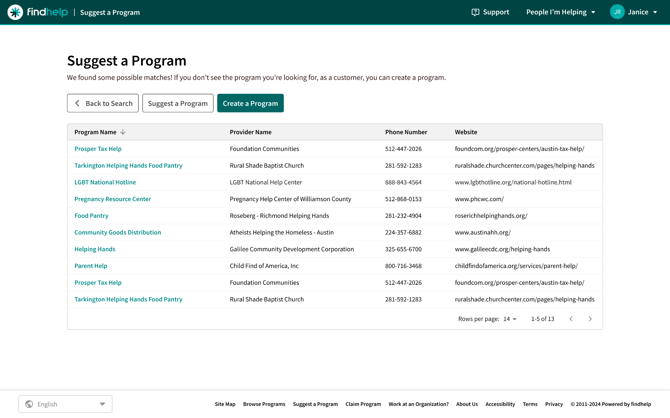
Simply click on the program name to open the program card and begin making your edits. If you do not find the program, you will click on the Create a Program button. It will redirect you to the Program Manager tool! You will only see this option if you are signed in.
Adding a Provider
Linking a new program to an existing provider ensures that seekers and navigators can see the full scope of that organization's services in one place. When a provider is correctly linked, users can simply click the provider's name on a program card to view all their available offerings.
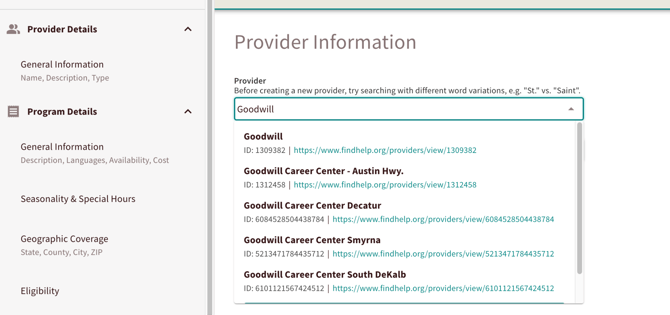
If the provider does not yet exist on the platform, you can create a new record:
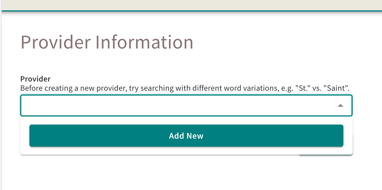
Step 1: Click the Add New button.
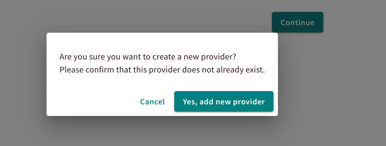
A notification will appear asking you to verify that the provider isn't already listed. If you have already searched and confirmed it is missing, click Yes, Add a New Provider.
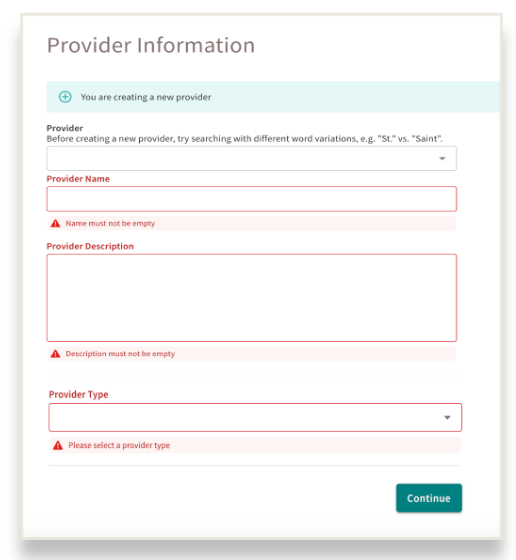
Step 2: Start by entering the Provider Name followed by a brief Description.
Step 3: Select the category that best describes the organization, then click Continue to proceed:
-
Business or Educational Facility
-
Charity
-
Health Facility
-
Faith-Based
-
Government (Federal, State, Regional, County, or City)
The Data Signal
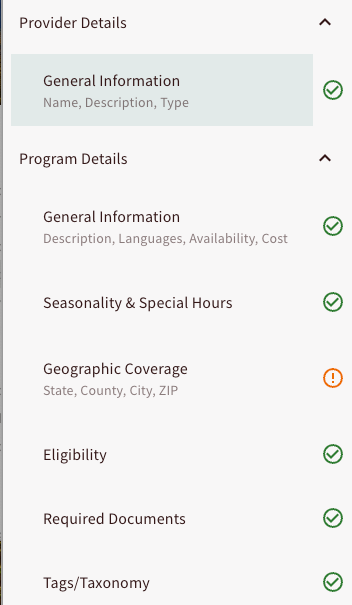
When adding a new program, the data signal in the side menu serves as your progress tracker, highlighting any sections that are still missing required information.
You can use this menu to jump directly to specific sections or simply click Continue to move through the setup process step-by-step. This ensures your listing is complete and ready for seekers before you hit save.
Fields Required to Save a New Program
| Field Inside Program Manager | Required or Optional | Reason |
| Provider Details |  |
Provider Details are required to link all of an organization’s programs together. This allows seekers and navigators to view every related service simply by clicking the provider’s name. To complete this section, please provide the name, description, and organization type. |
| Program General Information | |
This section is required to establish your program’s basic information (name, description, languages, availability, and cost). Social media and website links remain optional, though adding a website is encouraged if one is available. |
| Seasonality + Special Contact Hours |  |
You can skip this section if your program is not seasonal or if contact hours match your standard office hours. |
| Geographic Coverage | |
Please specify the program's service area. This data is used to match the program with relevant results during a ZIP code search |
| Eligibility | |
Only include eligibility requirements for programs that have them. Skip this section if there are no eligibility rules. |
| Special Fieldsets | |
The Special Fieldsets section is optional and should be used only if your program requires additional details, such as income charts or required document lists. Feel free to skip this if it doesn't apply to your program. |
| Open Eligibility Taxonomy | |
To publish your program, you must first add a taxonomy. This includes assigning an age tag and relevant primary tags to ensure your program is discoverable via categories, keyword searches and filters. |
| Connect Settings | |
Connect Settings are required, as they determine what appears in the 'Next Steps' section of the program card. The tool will automatically prompt you for specific information based on the step you choose. For example, if the next step is to 'Call the Program,' you’ll be prompted to provide a phone number; if that step isn't selected, the field remains optional. |
| Admin Settings - Adding a Listable Program | |
When you are adding a program that meets all of our listability guidelines, you do not need to fill this section out. |
| Admin Settings - Adding a Non-listable program | |
When adding a program intended exclusively for your Findhelp site, you must configure the audience settings. Simply choose 'White label only' and then select your site from the provided list. |
| Offices | |
To publish your program, you must designate an office location. Note that Service Offices are visible to the public on the program card, while Mailing and Admin addresses remain private. For virtual programs without a physical site, please use your state capital’s address as the Admin office. |
Resources to Help You Use Program Manager
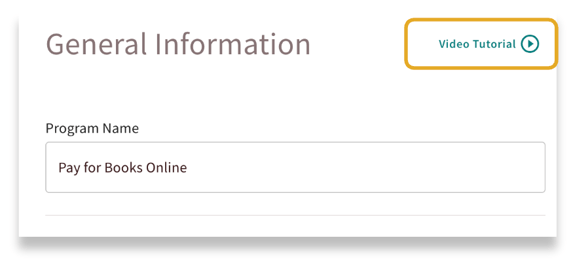
Each section of the Program Manager tool includes helpful built-in videos to guide you through adding or updating programs.
Simply click on 'Video Tutorial' to watch and get step-by-step instructions!
You can also watch this video to see Program Manager in action!
📝 Want to get this as a tip sheet to share with your team? Click here!
To help you navigate using the tool, each section within Program Manager features its own dedicated support article. These step-by-step guides provide detailed instructions on how to add or edit specific information effectively.
We recommend reviewing these resources whenever you update a listing to ensure your program data remains accurate and impactful!