
All users can create an account on any Findhelp site. This basic account allows them to search and access public resources. However, to enable users within your organization's specific site to utilize advanced tools and access reporting features, they must be given elevated permissions.
Only Site Administrators and Group Managers have the ability to grant these elevated permissions.
Adding Users to Your Site
Adding users to your staff site gives them access to all the extra tools and resources available. To add one, follow this process:
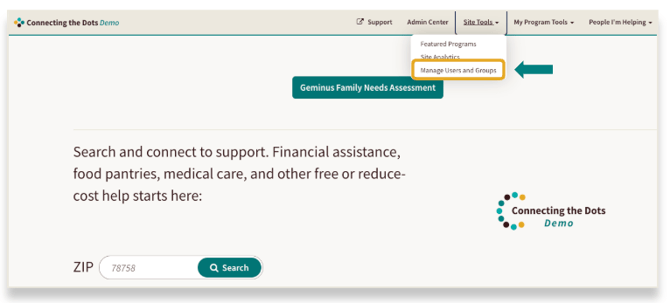
Step 1: Make sure you are signed into your account. Click on "Site tools" and then select "Manage Users and Groups. This will take you to the User and Group dashboard.
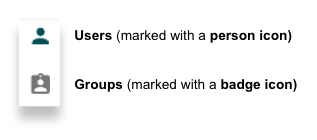
You'll see two main sections in this dashboard:
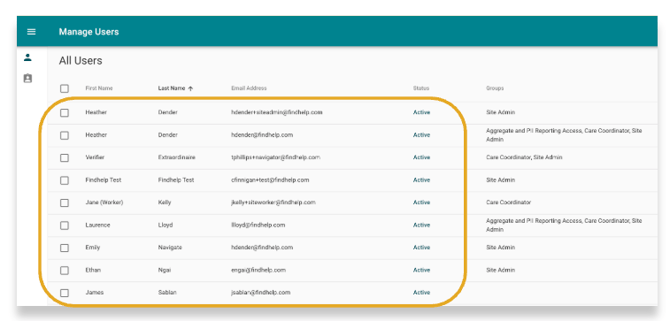
Within the users dashboard, you'll be able to see all the users you've added, their account email addresses, and whether they've activated their accounts yet.
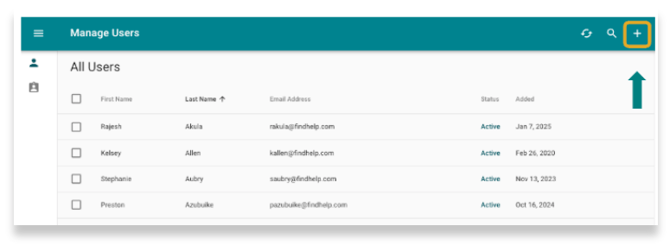
Step 2: To add someone new, click the plus (+) symbol in the toolbar at the top of the page.
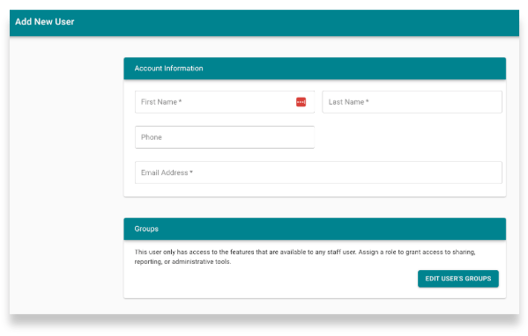
Step 3: Fill in the user's first name, last name, and the email address they'll use for the site.
If you have already created a group, you can add them to that group here.
Step 4: Click "Save." This immediately gives the user access to the site, and they'll now appear in your user dashboard.
User Account Activation Email
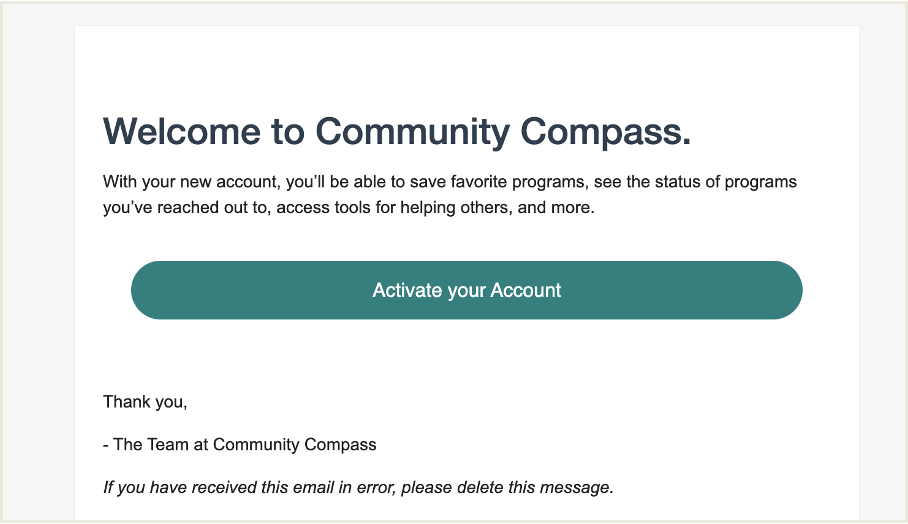
Once added, a new user will get an email with a link to verify their account and set up their password. They'll show as "inactive" in your dashboard until they click this link and activate their account.
Ready to add a new user to your site? Watch this video to see how!
💡Tips
- If the user doesn't activate the account within 24 hours, they will need to reset their password to gain access.
- If a user says they haven't received an email, have them check their spam or junk folder first.
- If you enable SSO, you won't need to add users to your site. This will automatically happen through this feature.
Adding Multiple Users at the Same Time
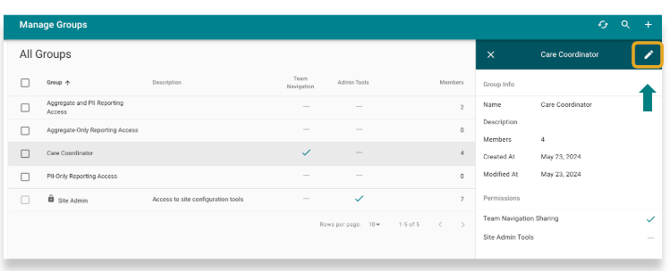
You can add multiple users to your site by assigning them to an existing group. To edit a group, simply click on its name in the group dashboard. A side panel will pop up with the group's information; click the pencil icon at the top to make your changes.
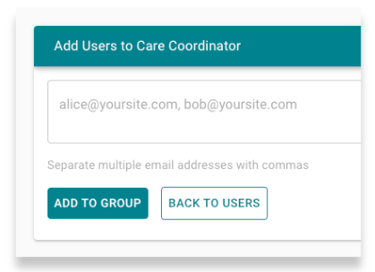
To add users, put their email address in the text box. You can add more than one user at a time, separating them by commas.
Ready to add multiple users inside of a Group? Watch the video below to see how.
When you add an authorized user to your staff site, you also give them access to the Program Manager tool. This powerful tool lets them make real-time additions and edits to programs directly on the platform.