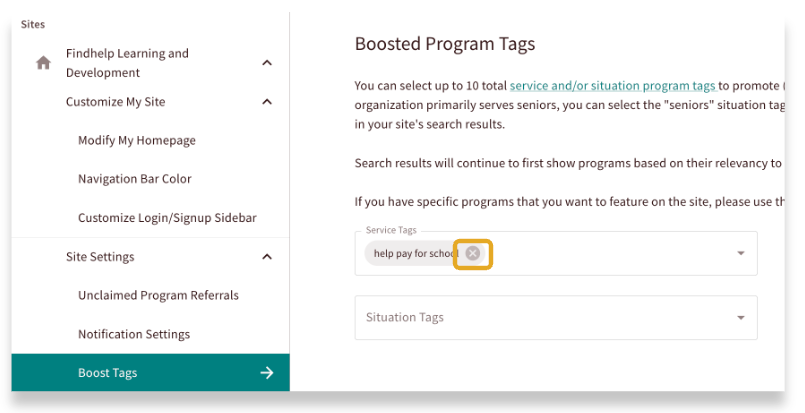
The Boosted Program Tags feature allows you to improve your users' search experience by prioritizing relevant resources. By boosting programs that have specific Service or Situation tags, you make sure those programs appear higher in search results.
How Boosting Works
Boosting gives programs a lift in relevant search results—they won't show at the very top (like Featured Programs), but they will receive priority over non-boosted programs.
For example, your organization might choose to boost certain tags:
- A children's hospital could boost programs tagged with "children" or "families."
- An organization primarily serving a refugee community could boost programs tagged with "refugees."
- A mental health provider could boost tags like "counseling" and "support groups."
How to Boost a Program Tag
Site Administrators can use the Admin Center tool to manage and update boosted tags.
Important: Before making any updates to the Boosted Program Tags, please consult with your Customer Success Manager to understand and assess the impact on your site's search results. Boosting a tag can affect the relevancy order programs show up in a search.
Follow these steps to update your boosted tags:
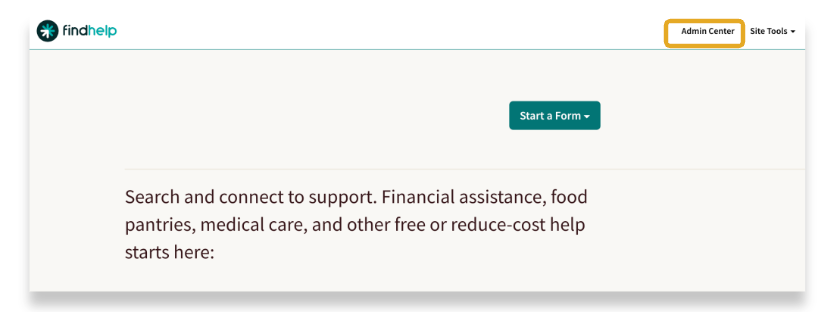
Step 1: On the top toolbar, click on Admin Center.
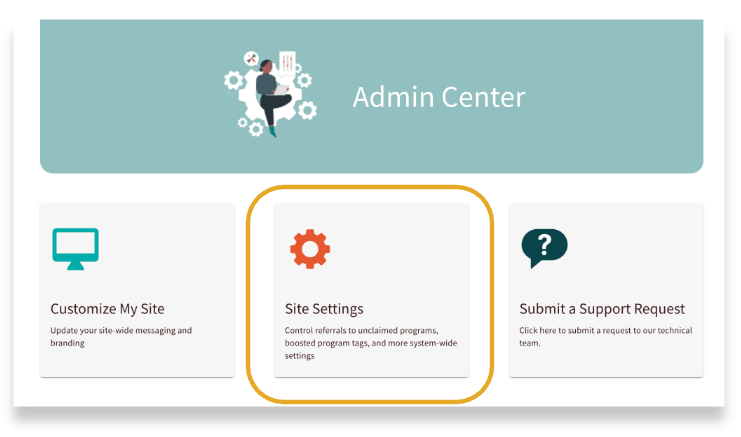
Step 2: Select Site settings and navigate to the Boosted Program Tags section.
Step 3: Select Service Tags and/or Situation Tags to boost by clicking on the text box.
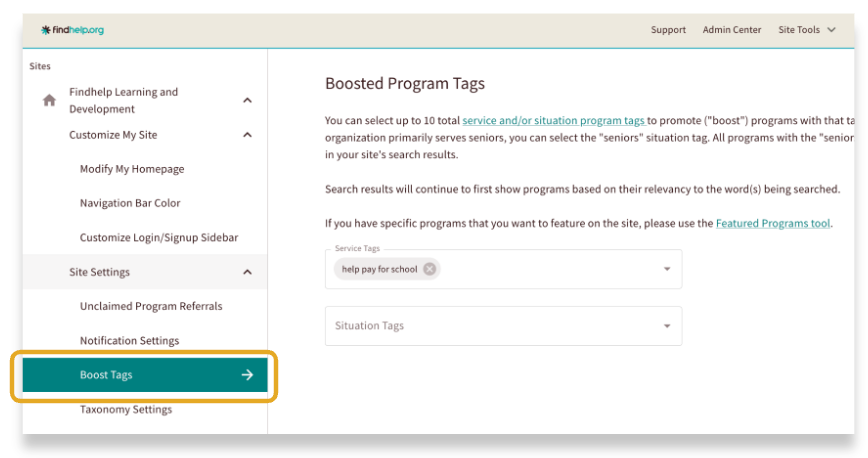
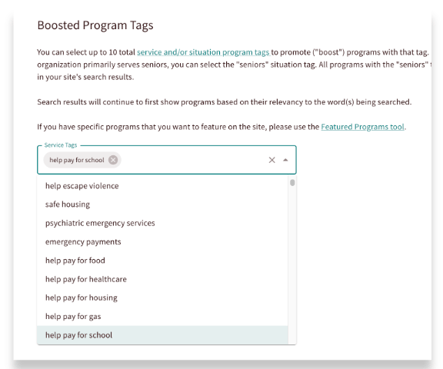
Step 4: Either type the tag you are looking for in the text box or select the tag from the drop-down menu.
You can boost up to ten total service and situation tags.
Removing a Boosted Program Tag
You can easily remove a tag you have boosted by clicking on the "x" next to it. This will make the program sort behave as normal.