
Configured Navigation Bars give you control over the structure and content of your website's main menu, ensuring users have a simple, focused experience. This feature is designed to prevent users from feeling overwhelmed by too many choices. Instead of seeing every possible category, you guide them to the most relevant areas.
Here's what you can control:
- Category Management: You decide the names and the order of the items in your main navigation bar. You can add, remove, or reorder these items.
- Hierarchical Focus: You can organize categories into two levels: the top-level main navigation and the second-level categories beneath them. (Note: By design, the third and fourth levels are hidden on these focused sites.)
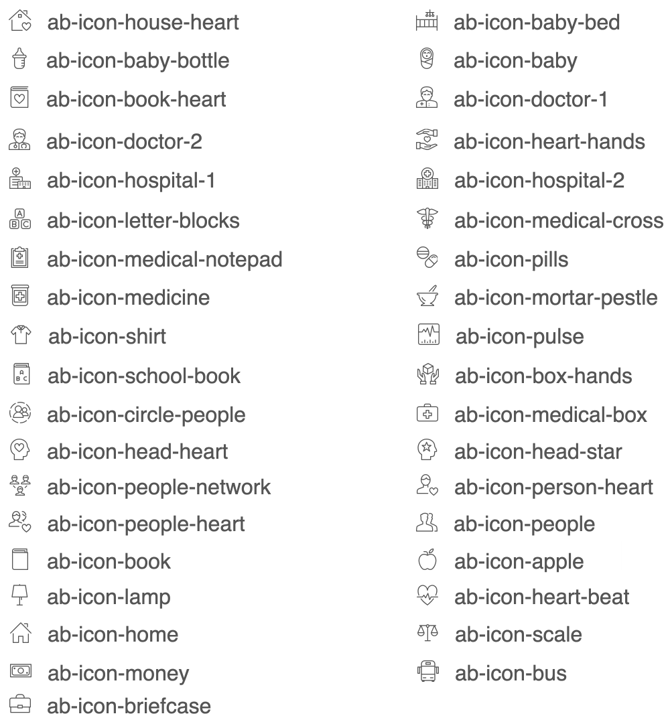
- Visual Appeal: You also get to select which icons appear next to the items in the top-level navigation bar.
The top navigation menu can list up to 10 categories. Each category item can have up to 9 subcategories beneath that are mapped to relevant tags, or keywords.

Standard Navigation Bar Example

Configured Navigation Bar Example
Mapping Subcategories
When you are setting up your navigation menu, it's important to understand the connection between your Subcategories (what the user clicks) and Service Tags (how the system searches).
Service Tags
Service Tags are the standard keywords that describe the actual type of help a program offers (e.g., "Dental Care" or "Emergency Shelter"). Here is the simple rule for mapping your custom subcategories:
- The Goal: You need to find an existing Service Tag that best describes the type of service you want the Subcategory to represent.
- Customization vs. Connection: You can change the words in the dropdown menu (the Subcategory name) to be clear for your users. However, every Subcategory must connect to at least one of the platform's existing Service Tags.
Situation Tags
Situation Tags describe the type of person a program is meant for (the "Who"). They help narrow down services based on demographics, circumstances, or conditions (e.g., "Seniors," "Veterans," or "In Crisis"). You can use Situation Tags in two powerful ways to guide users to the right resources:
1. Precision Search (Combining Tags): To get very specific, you can combine a Service Tag with a Situation Tag in a subcategory. This narrows the results to services that match both criteria.
2. Population-Wide Services (Situation Only): Sometimes, you want to show all the different types of services available for a specific population. In this case, you only map the subcategory to a Situation Tag
Configured Navigation works best when we can map to existing tags from the Findhelp taxonomy. If your organization is focused on specific populations for which Findhelp has existing situation tags, we can combine existing service tags and existing situation tags to (potentially) get more personalized exact matches.
Examples:
Service Tag + Situation Tag(s)
- Subcategory name = Young Adult Housing
- Service tag = Help pay for housing; AND
- Situation tag = teens OR young adults
Situation Tag
-
Subcategory name = Veterans Assistance
- Situation tag = veterans
Service Tag + Service Tag
-
Subcategory name = Interview & Resume Development
-
Service tag = interview training OR
-
Service tag = resume development
-
Assigning an Icon to Your Subcategory
You may choose from the icons below for any of your top-level categories.
Testing Out Your Mapping
You can test most of this functionality just by going to findhelp.org now and making the appropriate search. Below are a few different examples on how to test functionality. When testing note how many programs appear. If you get a lot of programs this is a good mapping to suggest. If you do not get a lot of programs, consider removing the filter so users do not get zero results.
| Example 1: Service Tag + Situation Tag(s) | |
|
Example: help pay for housing AND teens, young adults |
|
| Example 2: Situation Tag | |
|
Example: veterans |
|
| Example 3: Service Tag + Service Tag | |
|
Example: interview training AND resume development |
|