
After you add a user to your site, you can put them into a group. Groups are really important for helping your team work together and reach your goals. We've already set up some standard groups for reporting, but you can also create your own custom groups to fit how your organization works.
Why Are Groups Helpful?
- Better Teamwork: If users are in the same group and "team navigation" is turned on, they can share notes about programs, favorite folders, and seeker records. This makes it much easier for your team to work together and share information.
- Custom Reporting: You can control what kind of reports each user in a group can see.
- Easier Management: Groups let you run reports for specific teams. This helps you manage projects, meet your organization's unique needs, and more.
Creating a New Group
Want to create a custom group for your team? Here's how:
Step 1: In the side panel, click the group icon. Make sure the toolbar at the top says "Manage Groups."
Step 2: Start a new group, click the plus (+) symbol in the upper corner.
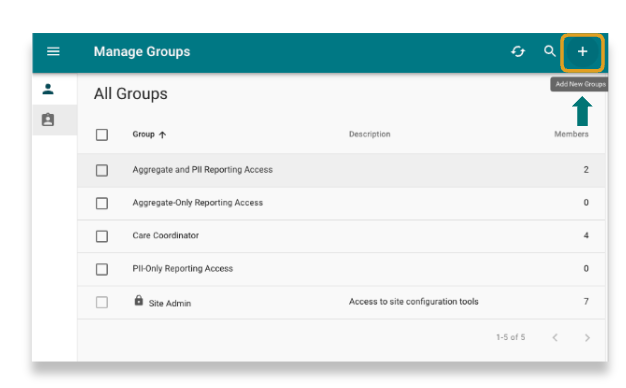
Step 3: Name and Describe Your Group: A window will pop up. Give your new group a name and a brief description.
Step 4: Set Permissions (Team Navigation is Key!): Below the description, you'll see options to set permissions.
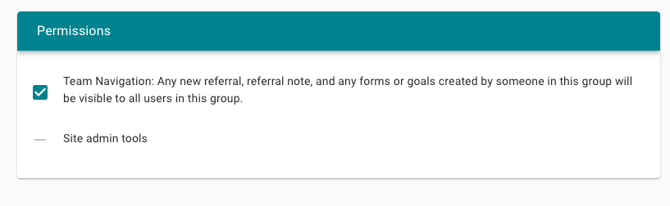
- Turn it ON (toggle it on) if you want the people in this group to be able to share program notes, favorite folders, and seeker profiles with each other. This helps them work together!
- If you leave it OFF, they won't be able to share these things.
Step 5: Click Save! Once you do, you will see your group listed in the group dashboard.
You can customize your groups to perfectly fit how your team works and manages projects.
Editing a Group
Once created, you can edit the group directly from the dashboard.
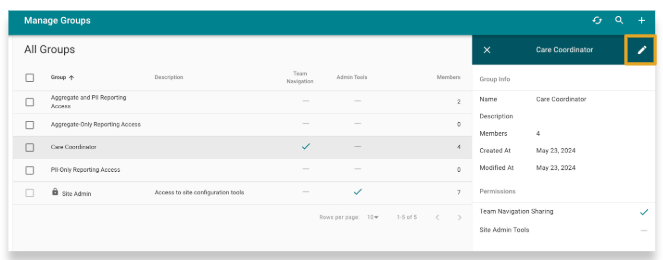
- 1. Click on the name of the group you want to edit.
- 2. A side panel will appear with the group's details.
- 3. Click the pencil icon at the top of the panel to begin editing.
Assigning a User to a Group
There are two ways to add users to a group you have created. You can do this by editing
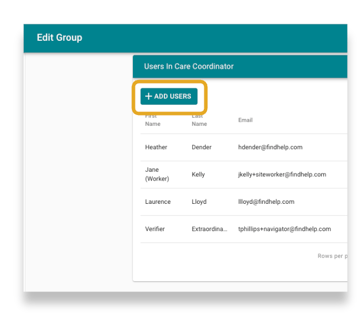
To add users to a group, open the group's edit panel and click Add User.
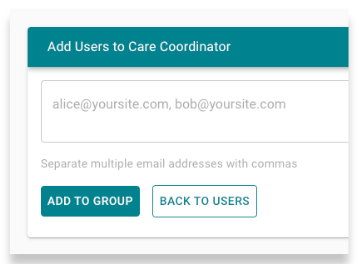
Enter the email address of each user you want to add in the provided field. If you're adding multiple users at once, separate their email addresses with a comma.
Ready to a user to a group you created? Watch the video below to see how.
Adding Multiple Users to a Group
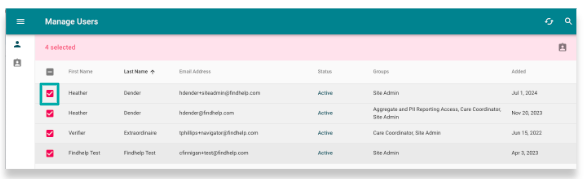
You can add multiple users to a group at the same time directly from the User Dashboard.
First, find the users you want to add and select the checkbox next to each of their names. Once you've selected all the users, click the clipboard icon in the toolbar.
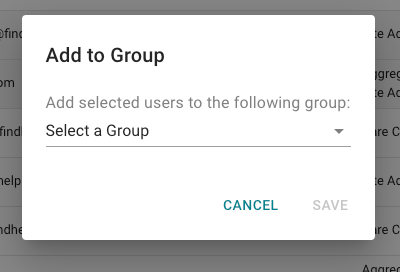
A menu will then appear. From here, choose the group you want to add the users to, and then click Save.
Ready to add multiple users inside the Users dashboard? Watch the video below to see how.