
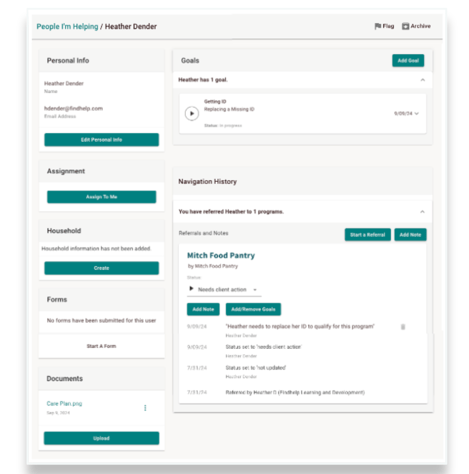
The Seeker Profile holds the information for the people you are helping.
While it always includes basic fields like first name, last name, email, and phone number, you have the option to add Custom Profile Fields to meet your organization's specific needs.
What Are Custom Profile Fields?
You can add any custom field to a seeker's profile, as long as it isn't a social security number. Examples of custom fields include:
- Unique IDs (Patient ID, Medicaid ID, etc.)
- Preferred Language
- Date of Birth
- Important Dates (Navigation or follow-up dates)
- Status (Stage of Navigation, such as "New" or "In Navigation")
Important Notes on Custom Fields
- Single-Site Use Only: Custom Profile Fields are limited to a single site and cannot be shared with other sites, even if they belong to your organization. Only the standard fields (first name, last name, etc.) will show across all of your sites.
- Control the Order: You can arrange your custom fields in any order you prefer on the profile.
Filtering Your "People I'm Helping" Dashboard
You can easily search and sort the profiles on your dashboard using the custom fields you've added. How you search depends on the type of custom field:
- Date Fields: You can filter profiles by a specific date.
- Multiple Choice Fields: These become a convenient drop-down menu on your dashboard. For example, you can filter to see only people with a "Stage of Navigation" of "New," "In Navigation," or "Closed."
- Text Fields: If the text field is a unique identifier (like a Patient ID), you can search for a specific person using that number.
How Unique Identifiers Work
A Unique Identifier is a number or code that helps us connect all the information for one person—like their referrals, appointments, and assessments—even if their contact details change.
This is because a unique identifier is specific to only one person. For example, a Patient ID is a great identifier because only one person has that number. A date of birth is not a good identifier, since many people share the same birthday.
How it helps you:
- Connects Records: If you make one referral for someone using their email and another referral using their phone number, a unique identifier (like a Patient ID) ensures both referrals are connected to the same person.
- Searchable: You can easily find a person's profile by searching for their unique identifier on the People I'm Helping Dashboard.
Adding Identifiers to Your Forms
When you create a custom profile field and mark it as a unique identifier, it will automatically show up on your Connect forms.
- These fields are optional and cannot be made mandatory.
- They don't have special validation (e.g., they won't require a specific number of characters).
- They are only visible to staff who are logged in.
How to Fill in a Custom Profile Field
You can fill in custom fields in two ways:
1. Directly on the Profile:
- On the person's profile, go to the Personal Info box on the left side.
- Click on Edit Personal Info to add or change information in the custom fields.
2. Autofill from an Assessment:
- If you fill out an assessment for a person, the answers to certain questions can automatically populate the custom fields on their profile. For example, if the assessment asks for their ZIP code, that information will automatically appear in the corresponding profile field.
If a custom field is also mapped in an Assessment, the information will be autofilled when you start a form from the Forms section of a person's profile.
Talk to your Customer Success Manager to set up this type of autofill.