
After creating a group and adding users, you can designate a Group Manager. This role allows you to delegate administrative tasks to trusted team members without granting them full Site Administrator access.
What can a Group Manager do?
Group Managers are empowered to manage their specific teams independently. Their key permissions include:
- Managing Membership: Adding or removing users within their assigned groups.
- Delegating Leadership: Assigning additional Group Managers to help lead the group.
- Team Maintenance: Ensuring their group list remains accurate and up-to-date.
Permissions Comparison
The chart below outlines the specific capabilities of Group Managers versus the broad oversight of Site Administrators.
|
Action |
Group Manager |
Site Administrator |
|
Create/add Users to their Group |
|
|
|
Remove Users from their Group |
|
|
|
Assign Group Managers within their Group |
|
|
|
Deactivate or lock a User |
|
|
|
Enable/disable Team Navigation |
|
|
|
Create a Group |
|
|
|
Update Group name |
|
|
|
Update Group description |
|
|
Assigning Access
To grant a user Group Manager access, follow the instructions below:
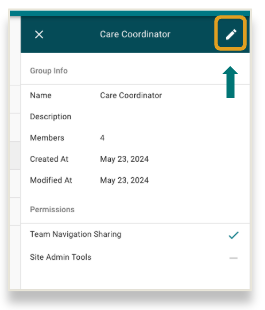
Step 1: Go to the Group in the "Manage Group" dashboard, and click on the group's name.
Step 2: Edit the Group by clicking on the pencil icon to edit the group.
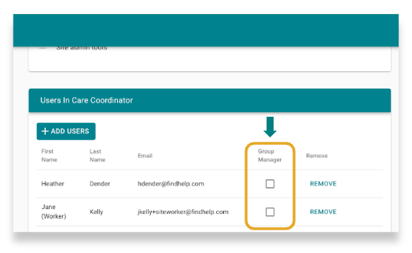
Step 3: Assign Manager Access in the "Users" section. You'll see everyone in that group. Next to each person's name, there's a checkbox for "Group Manager."
Click this box to give them access. You can have more than one Group Manager.
Note: There are no limits to the number of group managers in a group