
People in need (Seekers) use this platform to find and connect with your services. While our team continuously researches and updates platform data, your organization is the best source for real-time accuracy. Using the Edit Hours/Locations tool ensures that your program listing reflects exactly when and where you are available to help.
How to Access Edit Program Listings
To get started, sign in to your account and navigate to Program Tools in the top menu. From there, select Edit Program Listings to begin updating your information.
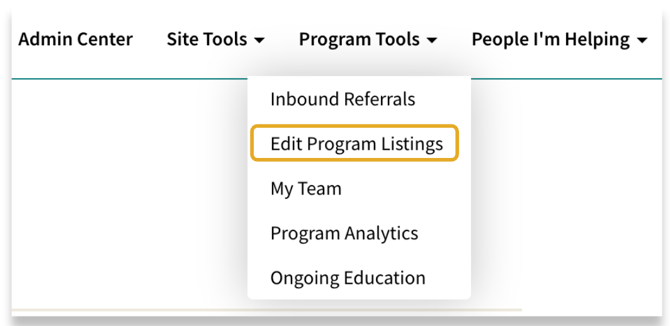
This will take you to your program listings dashboard where you can make updates to your program listing. In this article, we will be going over Hours / Locations and Capacity.
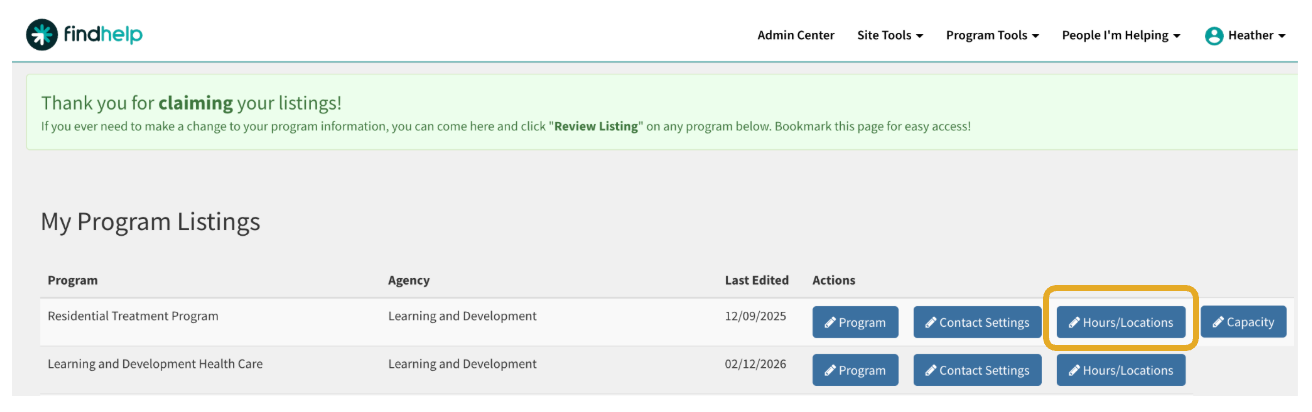
Managing Locations and Hours
In this section, you can view all office locations associated with your program. To make changes, use the Add New Location button to create a new entry, or click Edit next to an existing location to update its details.
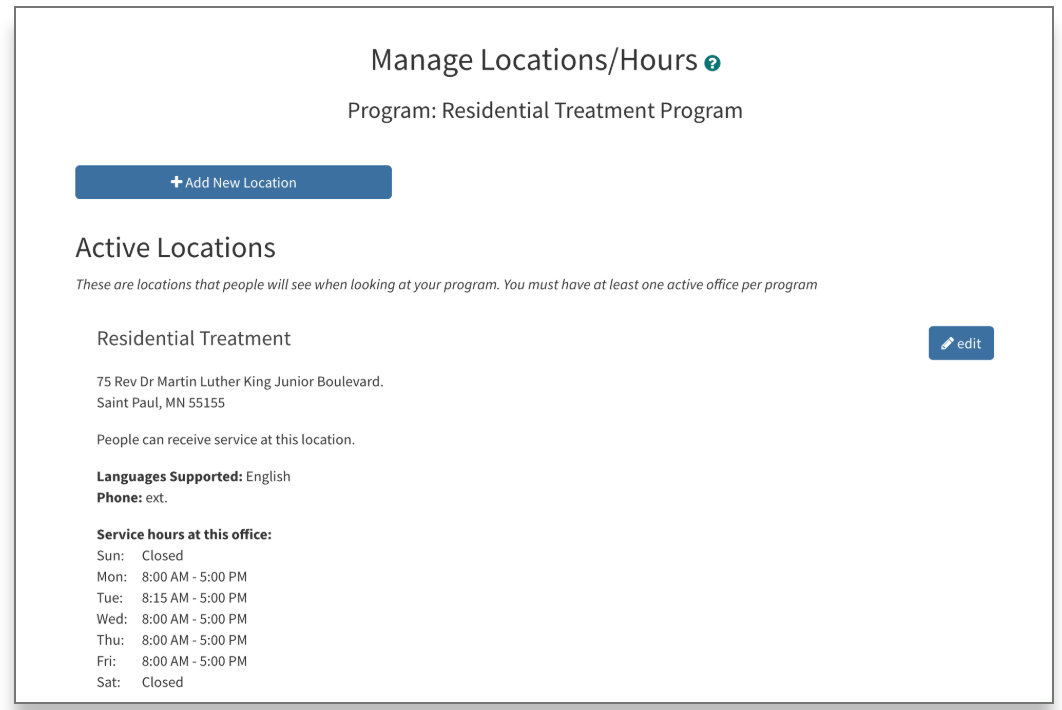
Once you have selected a location to edit, you can provide specific details to help Seekers find you more easily.
Location Name & Visibility
Update the location name and physical address as they should appear in the "More Info" section of your program listing. For sensitive services—such as safe houses—you can select the Confidential option to hide the specific address from the public while still providing help to those in need.
Contact & Site-Specific Info
You can add unique contact details for each location, including a specific email address, phone number, and website. This ensures Seekers are reaching out to the correct office directly. You can also list the specific languages spoken at this site to set clear expectations.
Helpful Navigation Notes
Use the "Additional Notes" field to provide specific instructions that a GPS might miss.
-
Example: "Classes are held in Room 302" or "The entrance is on the 5th Street side of the building."
If you are operating a site for a limited time—such as a disaster relief center or an annual enrollment event—you can set a Deactivation Date. The location will automatically be removed from your listing on the date you choose.
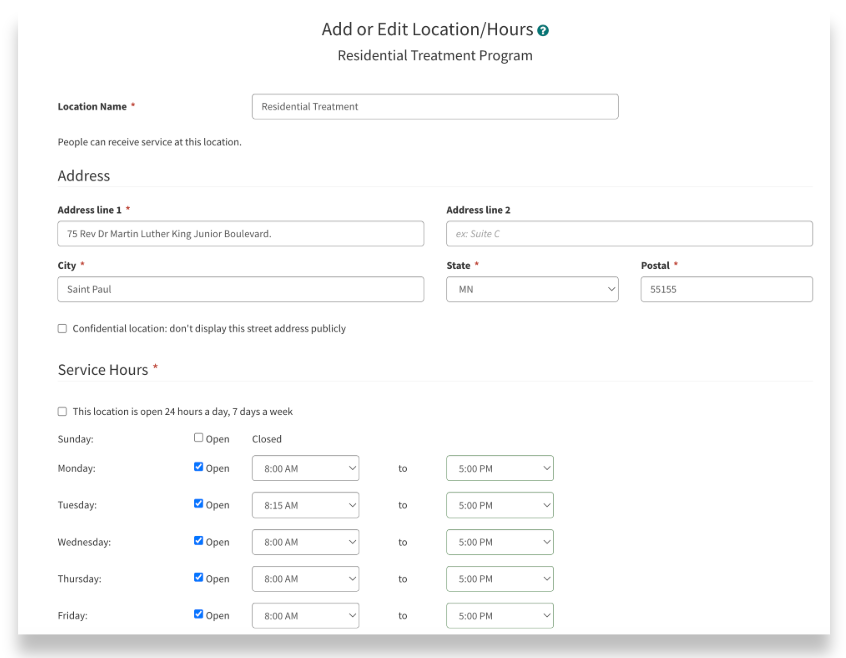
To finalize your updates, scroll to the bottom of the page and click the "Save and go back" button. Your changes will not be live until this button is clicked.
Managing Capacity
In some cases, your program card may include Special Fieldsets. These are custom sections designed to provide detailed, high-value information—such as required documents, available bed charts, income charts, or real-time capacity updates. Click on capacity to make updates.
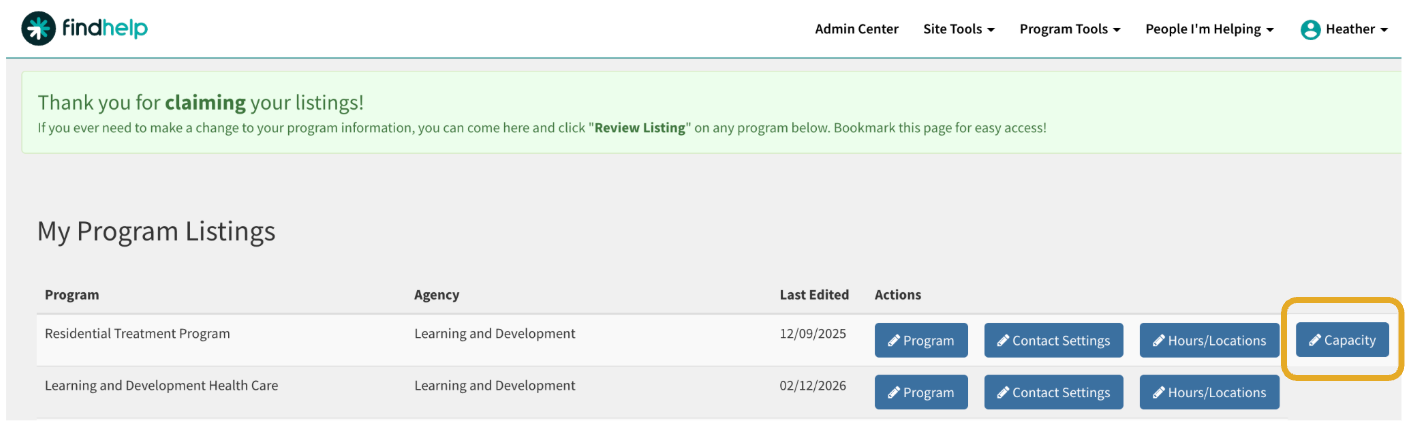
Special fieldsets are only available if they have been added to your program card by our Network Curation team. If you don’t see this option and would like to request it, click Edit on your program card to submit a request.
Example of an Available Beds Chart
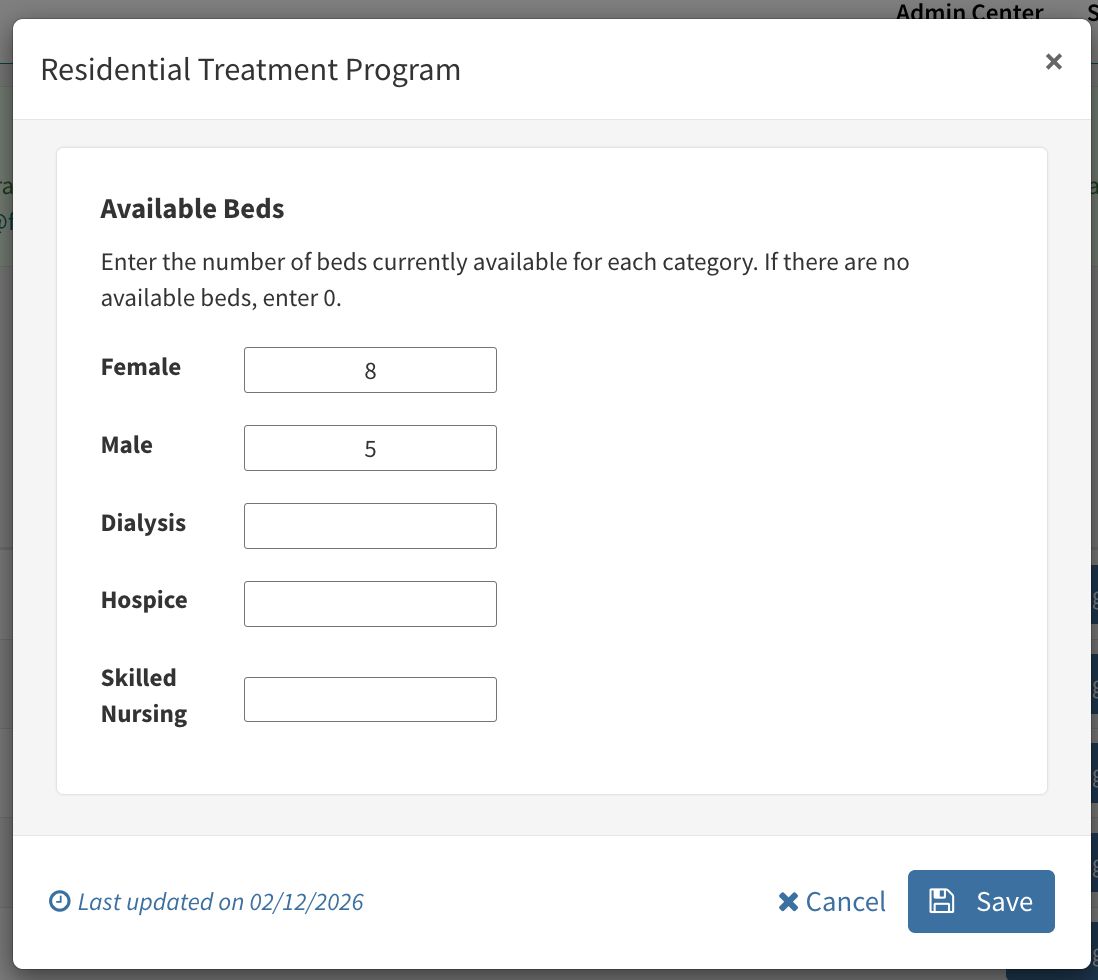
Keeping this information current is essential for managing your workflow. Accurate capacity data deters inappropriate referrals, saving your team from having to deny requests when you are full.