
At Findhelp, we want to ensure that "Seekers" (people in need) can always find and connect with your services accurately. While our team consistently researches and updates platform data, your organization is the best source for real-time accuracy.
Who Can Edit Your Program?
There are two primary ways program information stays updated:
-
The Findhelp Data Team: Our team strives to review and update all programs every six months.
-
Verified Claimers: Your services are dynamic, and claiming your program ensures your listing stays just as current. Once verified, you’ll unlock the Edit Program Listings dashboard, giving you full control to update your information whenever you need.
How to Access Edit Program Listings
To get started, sign in to your account and navigate to Program Tools in the top menu. From there, select Edit Program Listings to begin updating your information.
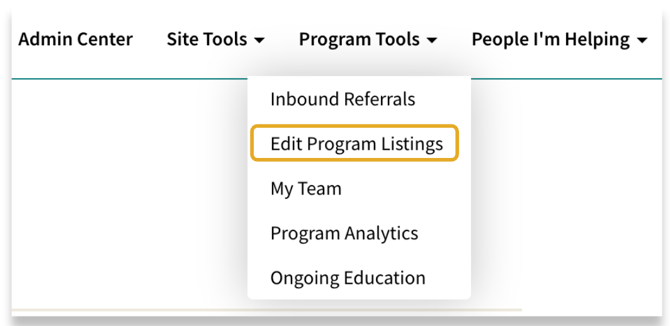
This will take you to your program listings dashboard where you can make updates to your program listing. We are going to start by talking about Program details.
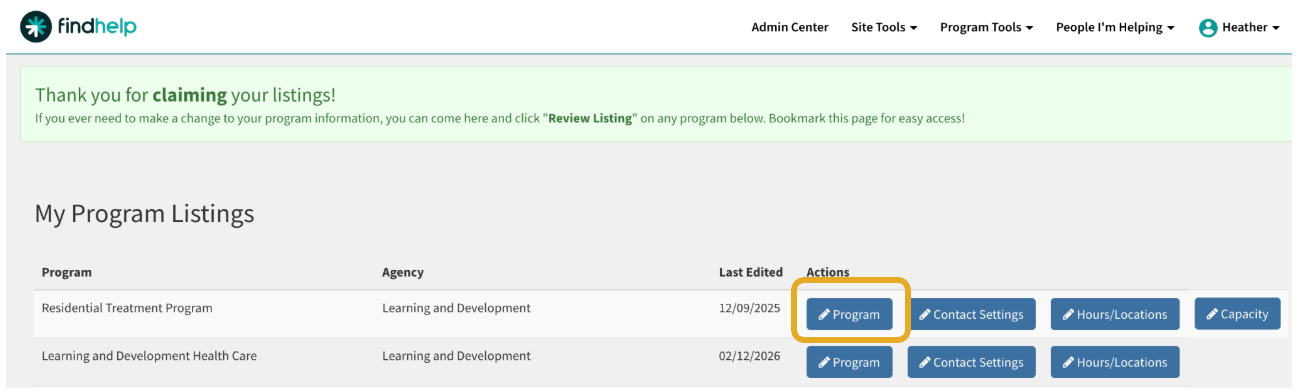
Managing Contact Methods
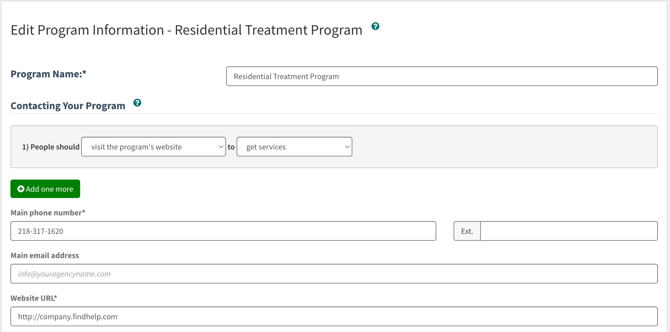
The information you provide in these fields determines how "Seekers" connect with you. Updating these ensures that the "Next Step" button on your program card directs people to the specific communication channels your team is actively monitoring.
-
Main Phone Number: This is the primary contact for the program (which may differ from a specific location’s number). It will appear as the primary action if your program’s "Next Step" is set to Call.
-
Main Email Address: This is the central inbox for program inquiries. It will be featured on the program card if your "Next Step" is set to Email.
-
Website URL: This link allows users to find more in-depth information. It appears in the "More Info" section of your program listing.
When you update these fields, you are directly managing the seeker's journey. By aligning these contact methods with your internal workflows, you ensure that every "Next Step" click leads to a successful connection rather than a dead end.
Managing Program Availability
Keeping your availability status current ensures that Seekers and navigators have accurate expectations. Maintaining an accurate status also helps reduce the number of ineligible referrals you receive, saving your team from having to manually decline requests when you are at capacity.
How to Update Your Status
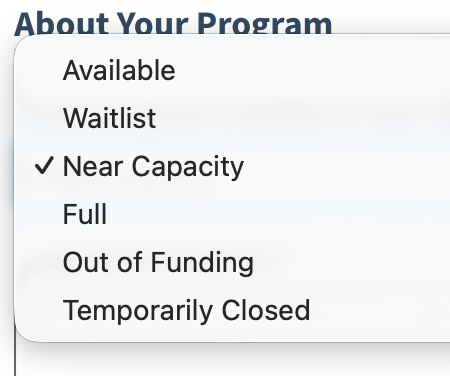
Locate the section titled “Is your program available to new clients?” and select the status that best reflects your current capacity:
-
Available: Open and accepting new clients.
-
Near Capacity: Open, but space is limited.
-
Waitlist: Open for future service via a queue.
-
Full: At maximum capacity; not accepting new clients.
-
Out of Funding: Paused due to budget limits.
-
Temporarily Closed: Inactive for a specific period.
How Availability Affects Search Results
To help people find immediate support, the platform's search logic prioritizes accessible resources:
-
High Visibility: Programs marked as Available are prioritized in the sort order.
-
Lower Visibility: To ensure users see the most reachable resources first, programs marked as Waitlist, Full, Out of Funding, or Temporarily Closed will appear lower in search results.
Managing Your Program Description
Your program description is often the first thing a Seeker reads. Its goal is to provide a clear, high-level overview so people can quickly decide if the program is right for them.
-
What is the program? Provide a high-level overview of the service provided.
-
Who is it for? Identify the target audience (e.g., residents of a specific county, low-income individuals, or people with disabilities).
How to Update: You can edit your description at any time in the "More Info" section. Please ensure your summary is at least 140 characters to provide Seekers with enough detail to understand your services.
Managing Your Program Tags
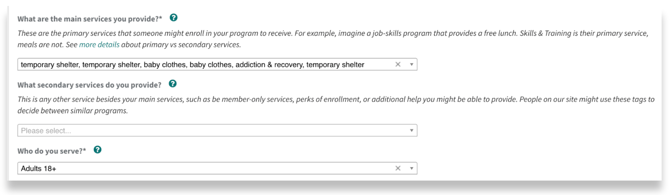
Tags help "Seekers" find your program and understand exactly what you offer. You can add up to 15 tags in each category. Because tags power our search engine, adding or removing them will directly change when and where your program appears in keyword and category searches.
Main Service Tags (How you are found)
Found under “What are the main services you provide?”, these are your searchable keywords. They determine which keyword or category searches will trigger your program to appear. Use these for your core services, such as "Food Pantry" or "Emergency Shelter," to ensure you appear in relevant search results.
Other Service Tags (Added value)
Found under “What secondary services do you provide?”, these tags are not searchable. They are designed to show users what additional help they can receive once they are already enrolled in your main service. For example, if your shelter offers "Job Placement," listing it here provides helpful context without cluttering primary search results.
Serving Tags (How you are filtered)
Found under “Who do you serve?”, these tags create specific filters for identity or situation, such as "Veterans" or "Families." These tags allow Seekers to narrow their search results, ensuring your program appears when a user filters for the specific groups you support.
Language, Cost, and Eligibility
Languages Supported
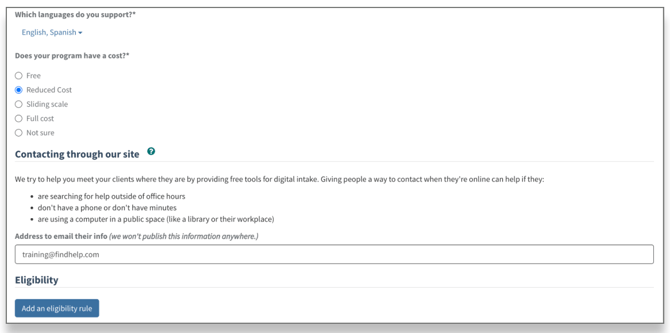
Select the languages your staff can support via the dropdown menu. This information appears in the "More Info" section and, more importantly, powers the Language Filter at the top of search results.
Program Cost
Under the heading "Does your program have a cost?", you can choose the option that best fits: Free, Reduced Cost, Sliding Scale, Full Cost, or Not Sure. This helps Seekers understand financial requirements at a glance.
Eligibility Requirements
You can list specific rules (like age or residency) that a person must meet to qualify for your services. If you add an Income Eligibility rule, your program will automatically react to the income filter in search results. All requirements are displayed clearly at the top of the "More Info" section.
Up Next
Now that your program details are up to date, let’s configure your contact information to enable Live Referrals and start connecting with Seekers in real time.