
Findhelp is designed to be easy for anyone to use on their own. You can search for programs, share information, and even create referrals for yourself.
Starting a Search
From the home page, enter your zip code and click Search.
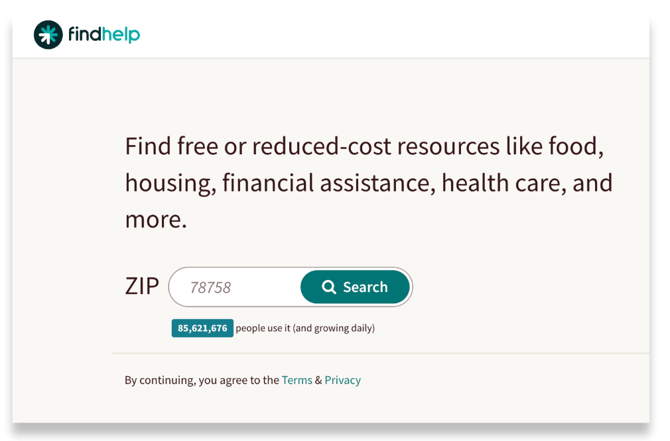
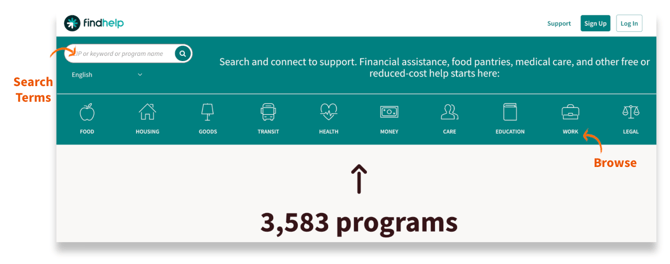
Next, you have two options to continue your search:
- Select a category, like Food or Health. Then, choose a subcategory to see a list of related programs.
- Type a keyword into the search box. Select from the list of options that appears or click the magnifying glass to search.
After you search using keywords or categories, you'll see a page with your results.

By default, these results are sorted by relevance – meaning what the system thinks is most helpful to you. But you can change this!
You can sort the results to show what's closest to the zip code you entered instead.
Share the Program to Your Email, Phone or Facebook
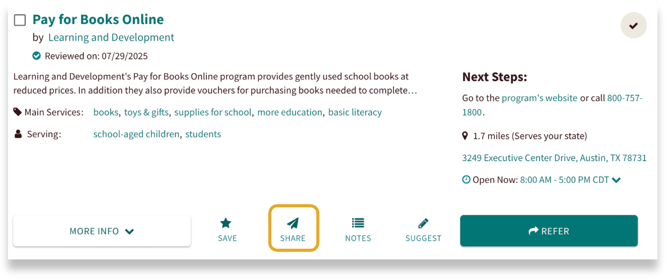
If you find a program you like and want to follow up with later, just tap the Share button. You can send it to yourself by email, text message, or even on Facebook.
Share Through Email
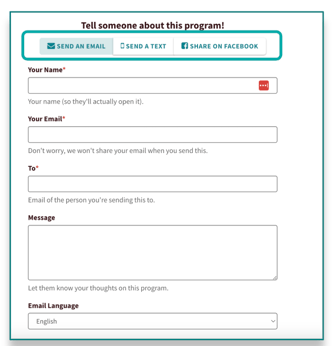
If you share by email, you can pick a preferred language, and your message will automatically translate. You'll then get a link to the program sent straight to your inbox.
Share Through Text
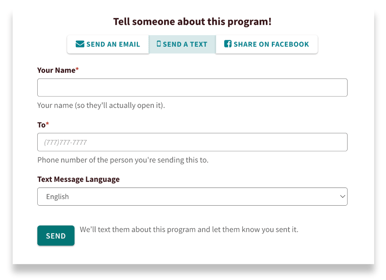
Add in your phone number to have the program link sent to your mobile.
Share Through Facebook
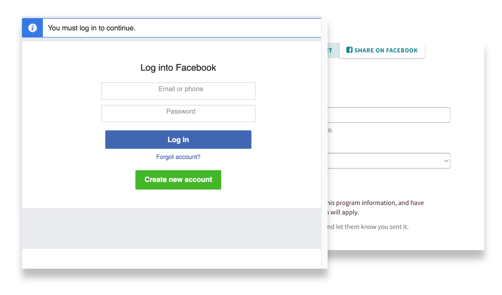
To share on Facebook, you'll be redirected to log in. Once you're signed in, a link to the program will appear on your page.
Refer Yourself to a Program
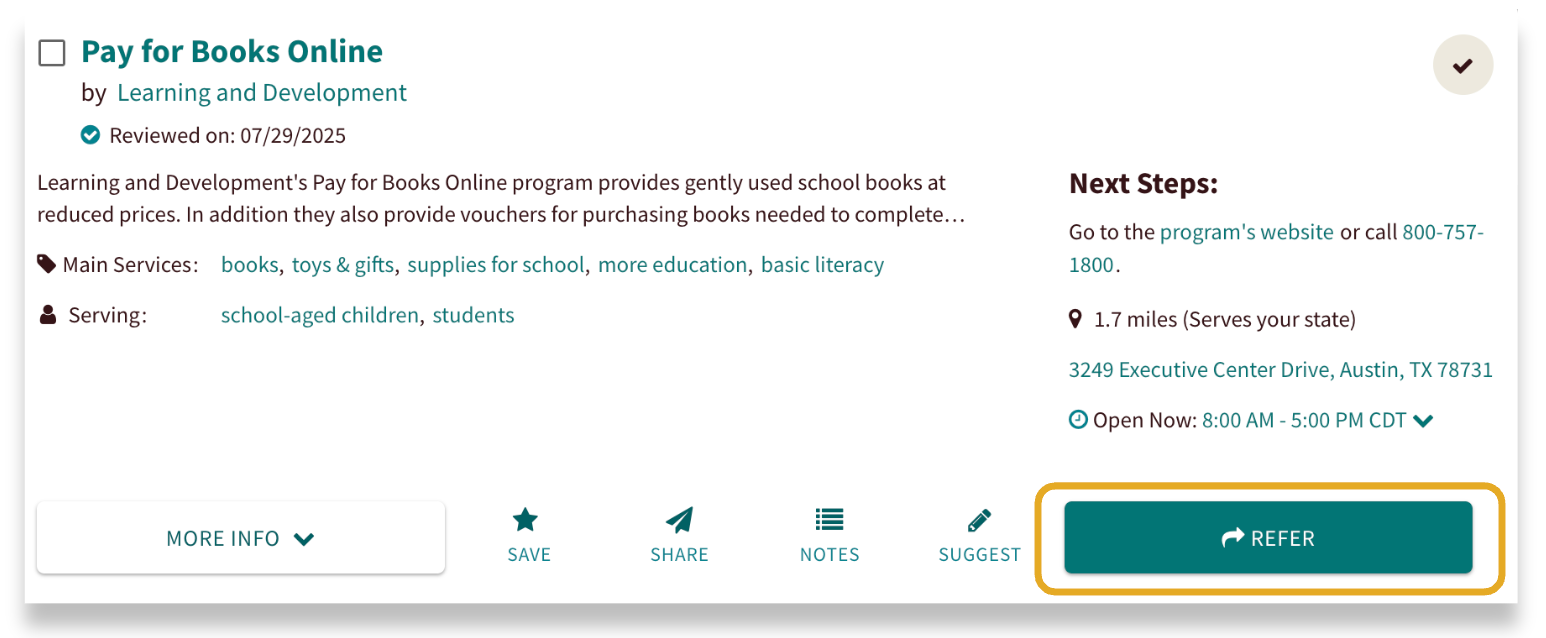
You can also start the process of connecting to the program directly to get the resource or service they provide. Click on the connect button on the program card to refer yourself to the program.
Fill out the form to send to the program provider.
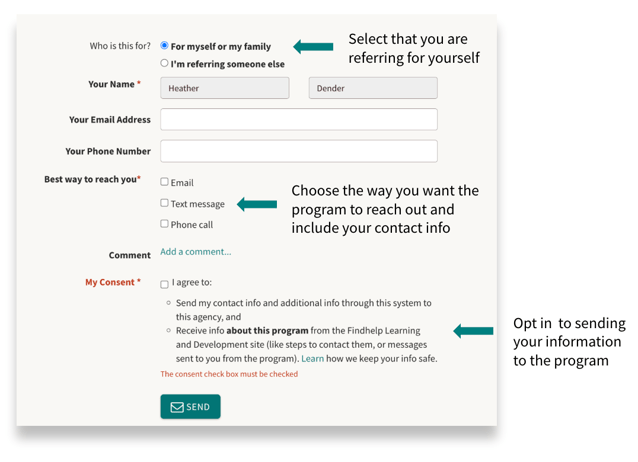
If you select email or text message, you will receive a notification that you referred yourself to this program.