
Findhelp's analytics tools give you a comprehensive look at what's happening on your site. You can view everything from your personal work and program management to overall site activity.
Our dashboards include specific metrics to help you understand how users are interacting with your site. To learn more about any of these metrics, you can find definitions and details on the individual charts and tables within the analytics suite or in our Knowledge Base.
Info Icon on Charts and Tables
To quickly understand a chart or table, simply click the 'i' icon located in the upper-left corner. A pop-up will appear with more details about the data you're viewing.
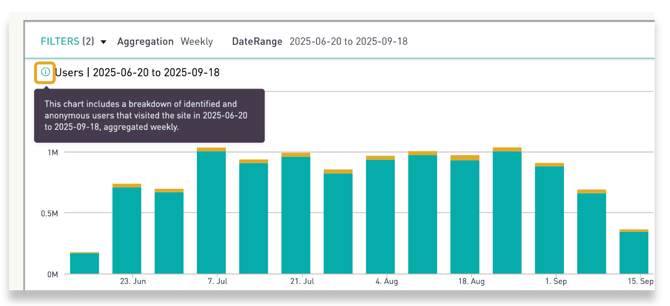
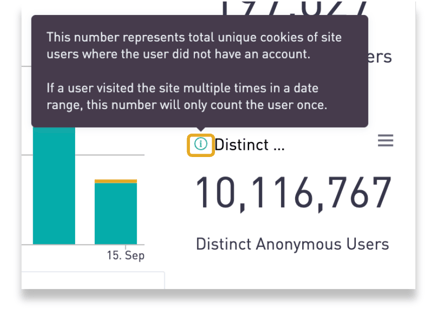
You can also see definitions of the users included in your report by clicking on he 'i' icon.
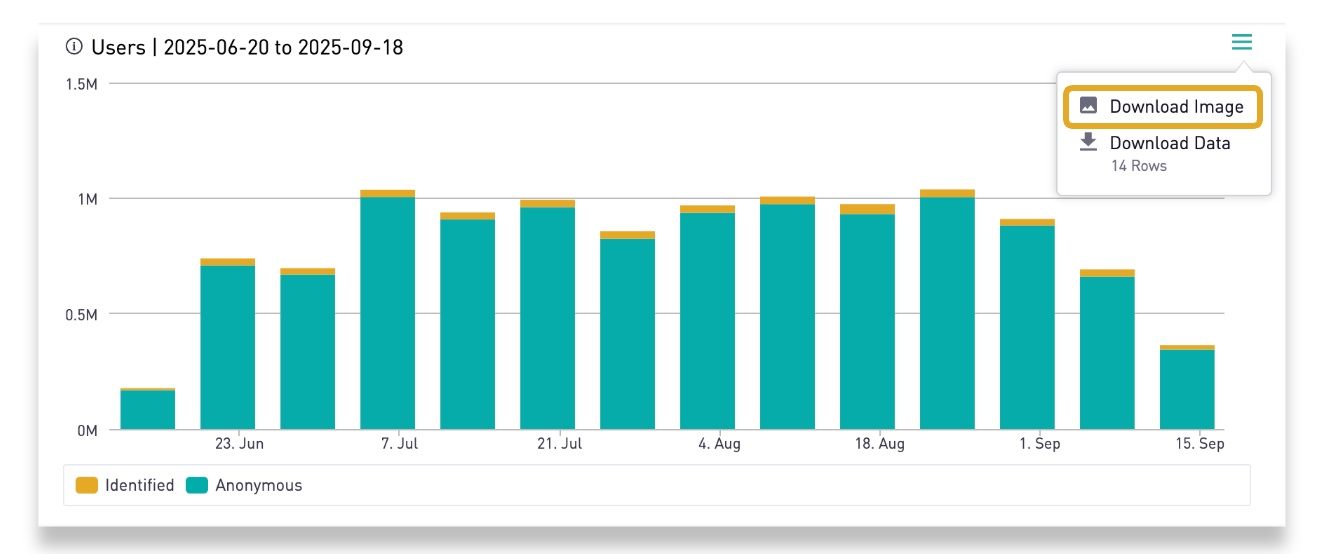
To download a graph, simply click the three horizontal lines located next to the graph. From the menu that appears, select Download image.
Additional Resources for Analytics
- For a complete list of all the metrics found across our dashboards, refer to the Analytics Definitions article.
- If you're looking for a list of all available filters, see the Analytics Filters article.