
The Group and Navigator Activity dashboard shows how different staff users and groups are interacting on your site(s). From this dashboard Customers can understand staff adoption. Using filters, you can understand staff user and group usage for specific subdomains, groups or specified time frames.
You Can Use This Dashboard To
- Understand how frequently groups and individuals are using the site(s).
- Track how often users are logging into the site(s).
- Identify which groups and staff users are the most active.
- See which staff users are suggesting programs.
In doing so, you can understand if staff users are logging in, how active groups are and who the most active staff users are.
For the best results, you'll want to use a combination of some or all of the following filters: Site, Group, State, Date Range, and Aggregation. To learn more, check out our Using Analytic Filters article.
Understand How Often Users are Accessing the Site(s)
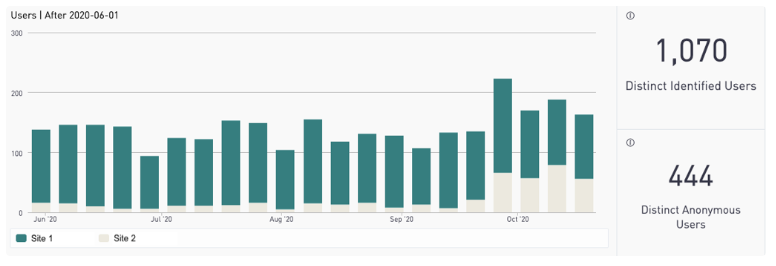
You may want to understand how often staff users are accessing and logging into your site(s). You can use the Site filter to understand these trends which can help you understand the impact of specific initiatives you are putting in place to increase staff site usage and logging in.
- See which staff are logging into and using which site(s) by using the site filter
- See if staff are using the anonymously or logged in
Understand What Groups Are Most Active
You can see what groups are most active on your site using the Group Activity Summary Table.
- See the frequency of different engagement actions each group is taking on the site.
- Determine power user groups, and groups that may need coaching
Analyze Individual Activity and Identify Staff Super Users
Your most active users can be an invaluable resource. They can serve as site champions or super users for your teams or your organization. They also may have wonderful feedback on workflow tips that they can share. Download the data from this table, to identify the most active users for each team on your site!
- See what staff users are most active on your site using the Working Activity Summary Table.
- Identify staff that may need coaching
- See which staff are in which group