
The Findhelp platform offers various analytics and reporting tools. To access any reports, users must be logged in.
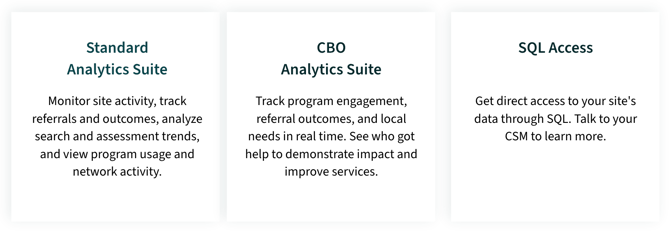
As a Site Administrator, you would give access to the Standard Analytic suite through adding authorized users to a specific reporting group.
SQL Access gives you a direct connection to your site's data that you can connect to your internal analytic tools and reports. If you are interested in learning more, talk to your Customer Success Manager!
Reporting Access Groups
There are three different reporting groups you can assign an authorized user to:
- Aggregate-Only Reporting: Grants access to report summaries without revealing staff or client identifying information.
- Aggregate and PII Reporting: Provides access to detailed reports, including staff and client personal identifying information (PII), such as names and contact details.
- PII Reporting Access: Limits access to specific reports containing only personal identifying information (PII).
|
Aggregate-Only Reporting Access |
PII-Only Reporting Access |
Aggregate and PII Reporting Access |
|
|
|
Adding a User to an Analytic Group
These analytic groups are already available on your site and can be managed from the Manage Groups dashboard. Follow these steps to grant a user access:
- Sign in and navigate to the top toolbar.
- Click Site Tools, then select Manage Users and Groups.
- Click the Group icon and select the specific analytic reporting group where you want to add users.
- In the side panel, click the Pencil icon to edit the group.
- Scroll down to the "Add Users" section.
- Click "Add a User" and enter the user's email address(es). You can add multiple addresses by separating them with a comma.
- Click Save!
You can also add users to the analytic groups from the user dashboard. Simply select the users by clicking the checkbox next to their names, then click the Group icon that appears in the bar above. Select your desired reporting group and then click Save.
To verify the users you've added, navigate to the group's profile and click the edit option. You can then view the complete list of assigned users in the group details section.
The entire process is outlined in the video below.