
Claiming your program is the first step toward reaching more people and managing your services more efficiently. If you are affiliated with an organization already listed on findhelp, you can create a free account and take ownership of your listing in just a few steps.
Why Claim Your Program?
Once you’ve verified your affiliation, you unlock a suite of free tools designed to streamline your operations:
-
Manage Program Info: Keep your hours, descriptions, and contact details up to date so people find the right information every time.
-
Custom Intake Methods: Choose how you receive inquiries—whether through eligibility screeners, direct applications, or referrals from community partners.
-
Referral Tracking: View, respond to, and manage all incoming inquiries in one centralized dashboard.
-
Free Impact Reporting: Access data on your program’s reach and outcomes to share with funders and stakeholders.
-
CEU Academy: Gain access to on-demand continuing education courses to sharpen your skills and better serve your community.
Who Can Claim?
You don’t need to be an Executive Director to get started. Any staff member affiliated with a program can claim it. Verification is quick and secure. We simply confirm your affiliation with the organization to ensure your data stays safe.
Tip: Multiple team members can claim the same program, allowing your entire staff to collaborate, update information, and manage tools together.
How Do You Claim Your Program?
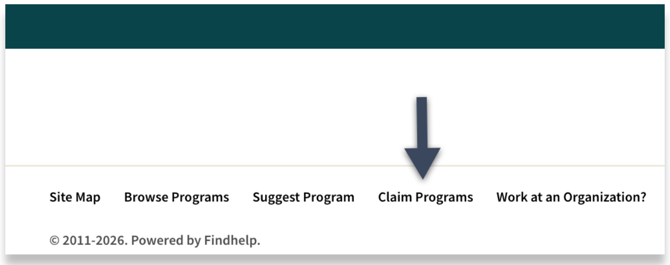
Step 1: Locate Your Program by going to findhelp.org. Scroll to the bottom and click 'Claim Programs'. Then search for your organization or program name and click the 'Get Started' button.
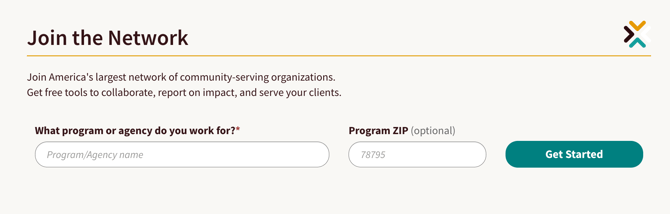
Step 2: Search for your program or agency's name.
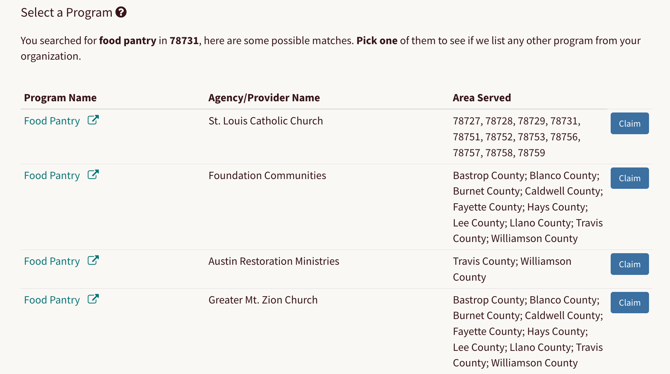
Locate your program in the search results and click 'Claim'.
If you don't find your program listed there, be sure to suggest it with the help of our knowledge base article, Suggesting Updates to Our Platforms.
If you have more than one program, select any additional listings by clicking the checkbox next to the program name. Then click 'I Work Here'.
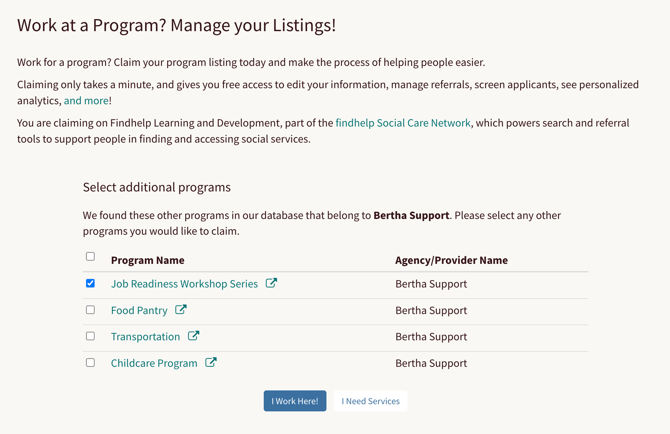
To help users find the right path, we include an 'I Need Services' button. This is specifically for individuals who may have mistakenly started the claim process while looking for assistance (e.g., applying for Social Security or local aid).
Clicking this button will instantly redirect the user back to the program details page, allowing them to request help or contact the program directly.
Step 3: Log in to your existing account or create a new one using your work email address. Click 'Complete Your Claim' at the bottom of the page
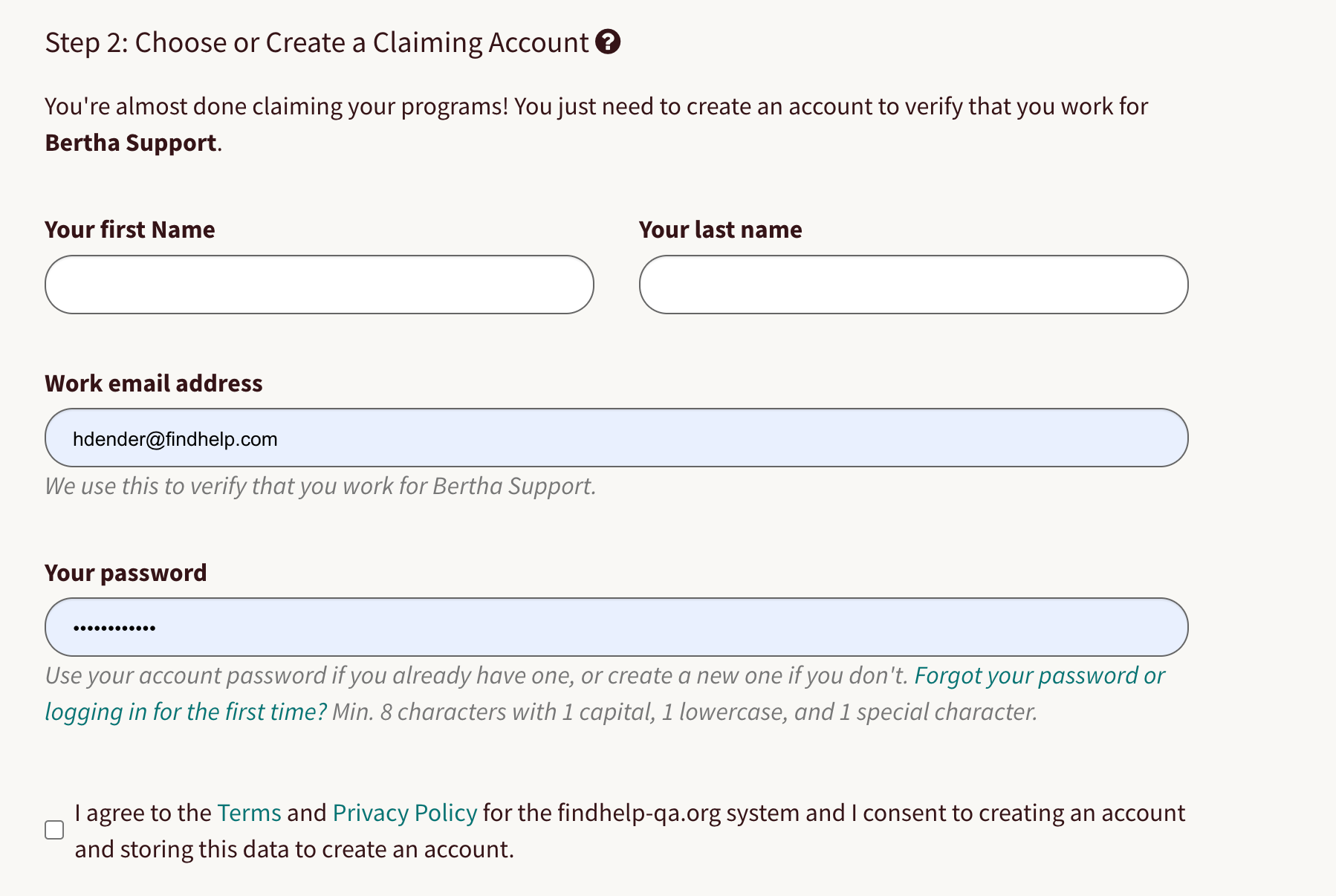
Want a step-by-step walkthrough? Watch the video below to see the claiming process in action!
Claim Verification
Once you submit your claim, we verify your affiliation to protect your organization’s data. There are two ways this happens:
1. Auto-Verification (Instant)
If your work email domain (e.g., @nonprofit.org) matches the website address we have on file for the program, you will be auto-verified.
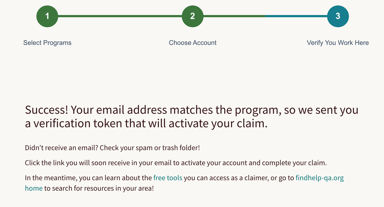
-
Action Required: Check your inbox for a validation email.
2. Manual Verification (1–2 Business Days)
If your email domain doesn’t match our records or we need more information, our Support Team will be notified to review your claim manually.
-
Our Process: We will confirm your affiliation with the program to ensure you should have access.
-
Action Required: Once approved, you will receive a verification email. Click the link inside to activate your claim.
Claim Validation Email
Once your claim has been approved, you will receive an email. The link is valid for 24 hours. If it expires, you will need to sign in to your account to resend it.
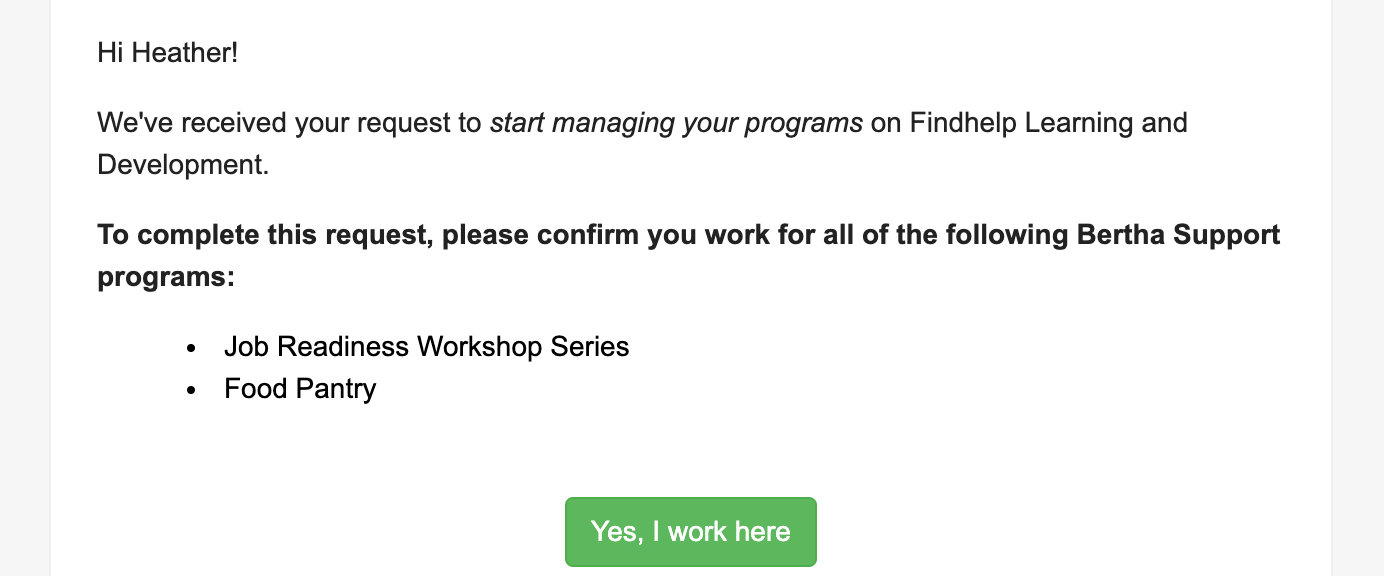
Verifying Your Program Details
Once your claim is verified, you’ll be prompted to review your program’s details. While our team works diligently to research and maintain accurate listings, you are the expert. Reviewing your information ensures that the people seeking help in your community always see the most up-to-date and accurate details.
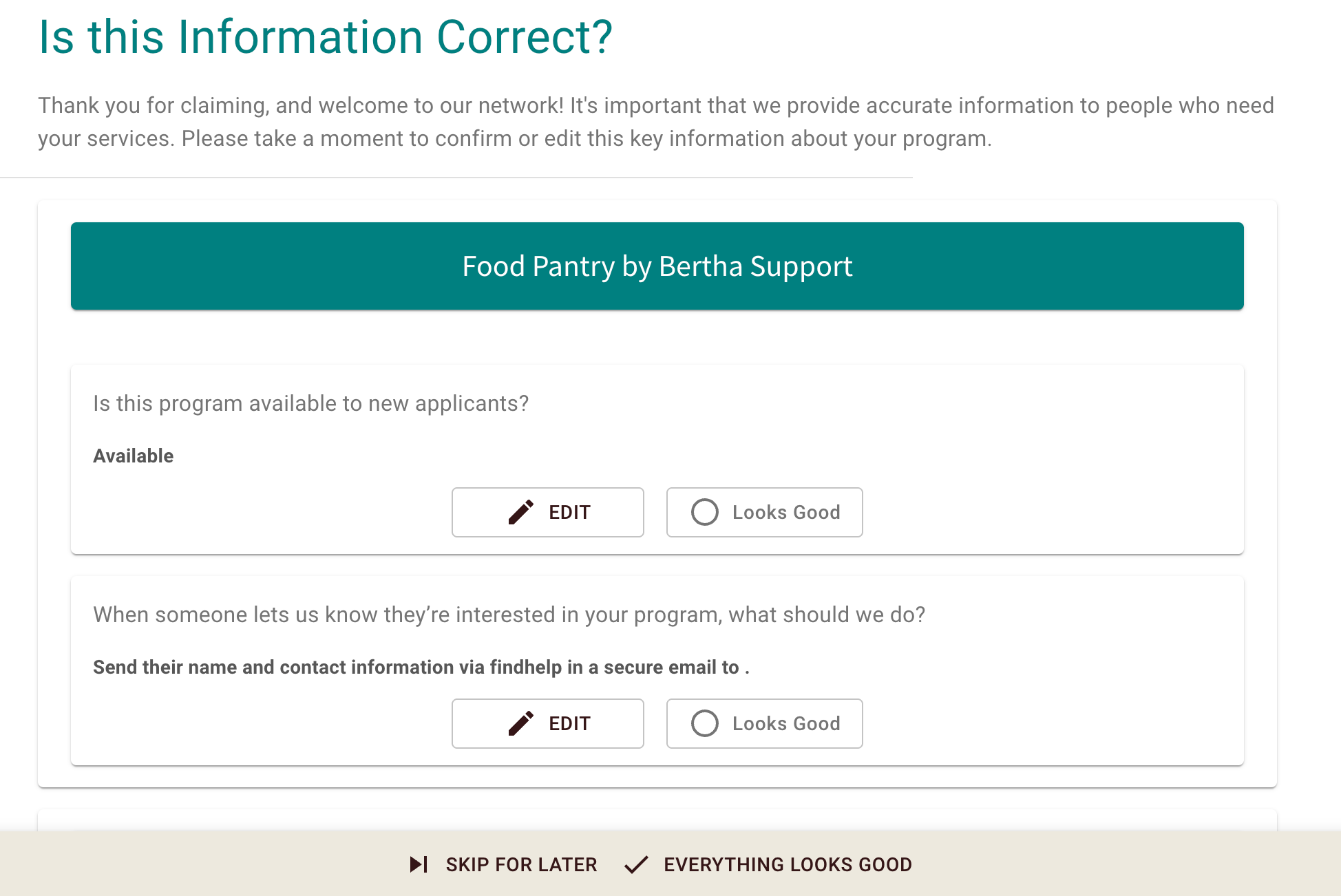
During this step, you will confirm your program’s availability and contact settings, including:
-
Application Status: Is your program currently accepting new applicants?
-
Primary Contact Method: What is the best way for a seeker to express interest in your services?
-
Notification Email: Which email address should receive referral and inquiry details?
Once you have finalized these settings, click the Save button at the bottom of the page to apply your changes.
Up Next
Now that you’ve joined the network, add additional team members granting them access to the program tools.