
Welcome to the Findhelp community! As a program provider, your work is the heartbeat of our network, and we want to ensure you have the tools to connect with those in need as efficiently as possible. This guide is designed to walk you through the first steps of your journey: from understanding how our platform bridges the gap between seekers and services, to the simple process of creating your account.
Learn More About Findhelp
Learn How to Create an Account
Creating an account is the first step in utilizing the Findhelp platform for your programs. Once you’ve signed up, you’ll be able to claim and manage your service details in real-time, respond to referrals with just a few clicks, and see exactly how your programs are making a difference in the community—all from one centralized dashboard.
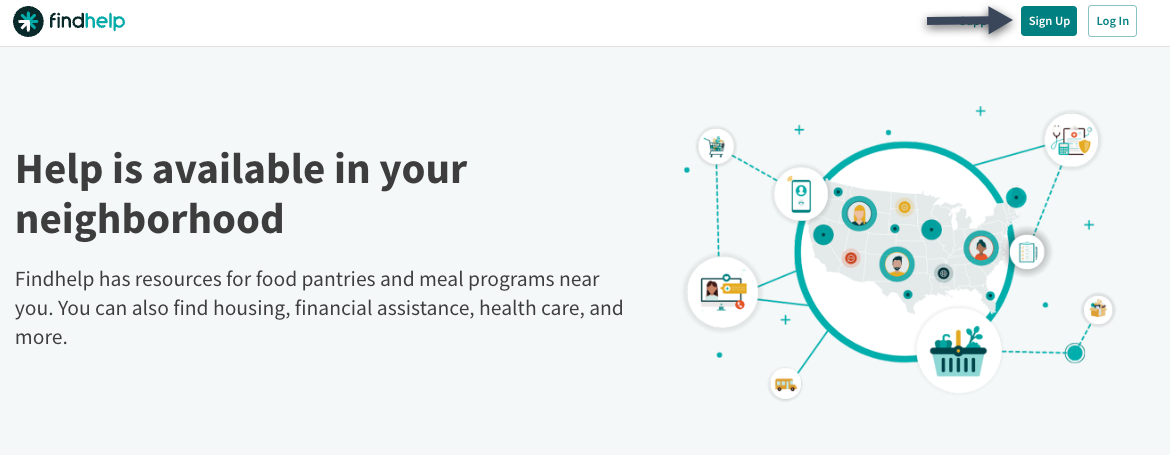
Step 1: From the home page, click on Sign Up
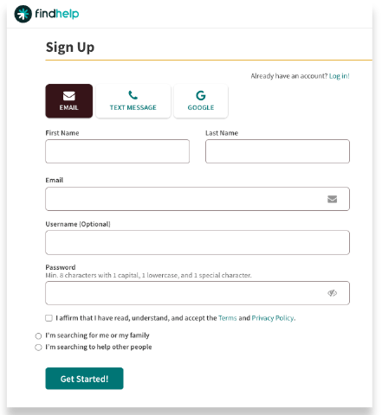
Step 2: Select if you want to sign up via Email, Text Message, or using your Google login.
When you're setting up your account, make sure to use the email address or phone number you plan to use consistently across the platform.
Step 3: Create a password that is a minimum of 8 characters with 1 capital letter, 1 lowercase and 1 special character (#?!@%^&*-)
Step 4: Accept the terms and privacy policy and then select whether you are searching as a seeker or as a navigator and click "Get Started".
You will then see this message that directs you back to your email or text message.
If you don't see the email, please check your spam or junk folder. If it's still missing, reach out to support@findhelp.com for assistance.
Step 5: Activate your account by clicking on the button inside of the email / text message you received.
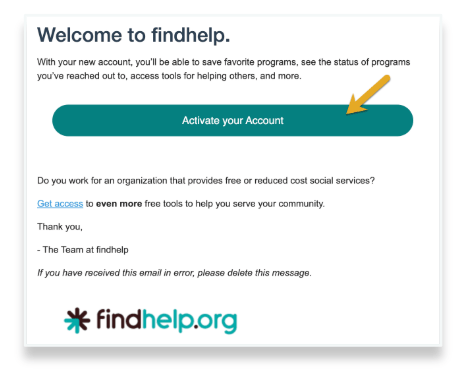
This link expires within 24 hours. If you are not able to confirm in that time frame, repeat the steps above to get a new link.
Once your account is active, you'll be automatically logged into findhelp.org (or your specific Findhelp site). You'll know you're in because your name will appear in the top right corner of your screen.
Want to see this in action? Check out our video below!
Learn the Language of Findhelp: A Glossary for Program Providers
CBO | This is our shorthand for community based organization.
Claiming Your Program | When a CBO claims their program on Findhelp, they take official ownership of their listing. By simply accepting the Terms of Service, your organization unlocks a free suite of tools to manage intake, document outcomes, and run reports.
Claimed programs have flexibility to respond to referrals, including via encrypted email, within the Findhelp platform, or within their own system of record through an integration with Findhelp.
My Team | A feature that allows you to expand your team on the Findhelp platform without requiring each person to claim the program. You can easily grant team members access to your program card details by assigning them either Admin or Worker permissions. This ensures everyone has the right level of access to manage your listings and respond to seekers.
Admin | This role acts as the account owner, providing full access to permission settings, the 'My Team' feature, and the complete suite of program tools. Crucially, the Admin establishes the privacy and visibility settings that determine whether team members can view each other’s notes and manage shared referrals.
When a program is first claimed, the Admin status is automatically granted to that user.
Worker | These users can collaborate and respond to referrals through the Inbound referral dashboard but won't have access to My Team.
Trusted Network CBO | A partner who has established a deeper relationship with both Findhelp and the primary customer. These organizations are actively engaged in service delivery and often participate in 'closed-loop' referral documentation and incentive programs. This trusted status is typically formalized through signed contracts, memorandums of understanding (MOUs), or state reimbursement initiatives.
Up Next
Learn more about what programs we list on our platform!