
As a Site Administrator, you can easily change or remove a featured label from a program on your site. Just remember that a Customer Success Manager must first set up the label before you can apply it.
How to Feature a Program or Provider
Once your Customer Success Manager has finished setting up your organization's feature labels, your designated Site Administrators can use the Featured Program tool to apply the labels to programs.
To feature a program:
Step 1: First, you'll need to find the program's URL or provider's URL. You can get this by navigating to the program or provider page you want to feature.
- To feature a single program, click on its name.
- To feature all programs offered by a provider, click on the provider's name.
Watch this video to see which URLs you need to copy!
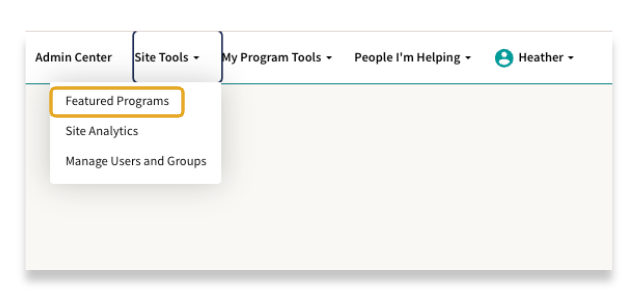
Step 2: Log into your account and navigate to the Site Tools menu. Select Featured Programs.
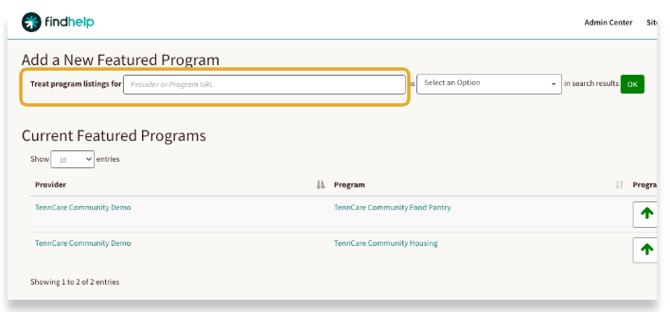
Step 3: Paste the program or provider URL into the Treat program listings for field. From the Select an Option dropdown menu, choose the featured label you wish to assign. Then click OK to add that label to that program or provider.
To apply, update, or remove a feature label, you must log in to each site individually. For example, if your organization has separate sites for staff and community, you will need to update the feature label on each site.
Each program can only have one feature label.
How to Change or Remove a Featured Label
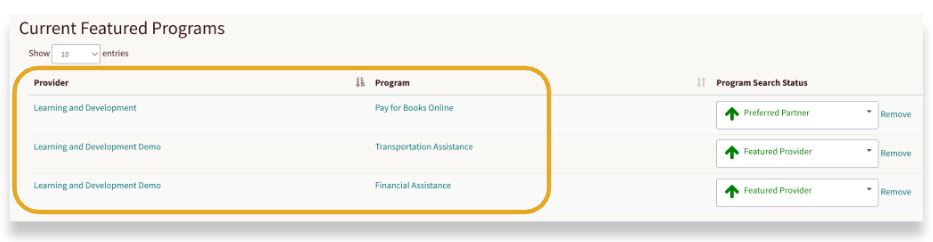
To update or remove a featured label, find the program you want to edit in the Current Featured Programs list. You can use the search bar or sorting options to locate it quickly.
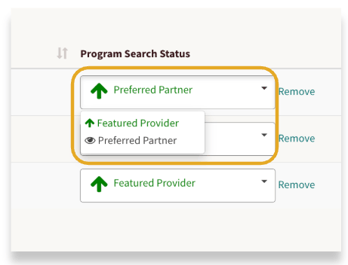
You can update a program's featured label by using the drop-down menu in the search status column and selecting the updated label. The new label will appear on the program card.
When changing a label for a featured provider, the update applies to all of that provider's program cards.
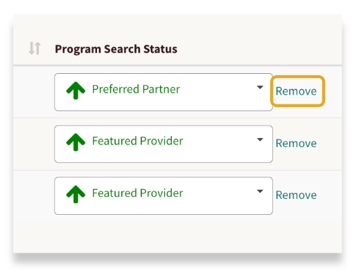
To remove a featured label from a program, simply click Remove next to the program in the list.
Once the label is removed, the program will revert to following the standard sorting rules in relevant search results.
You can repeat these steps for any other programs you want to change or remove.