
Site Administrators and Group Managers can use the "Manage Users and Groups" dashboard to remove users from groups.
Users who are in groups with Team Navigation enabled can share favorites folders, notes, and seeker profile information across the platform. Removing access can be useful for when someone leaves the organization or changes teams. Your assigned Group Managers can help with this task.
Removing a User From a Group
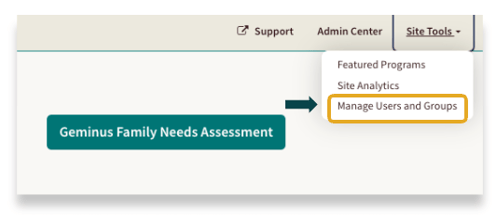
To access your Manage Users and Groups dashboard, make sure you are signed into your site. Then click on Site tools, and select Manage Users and Groups.
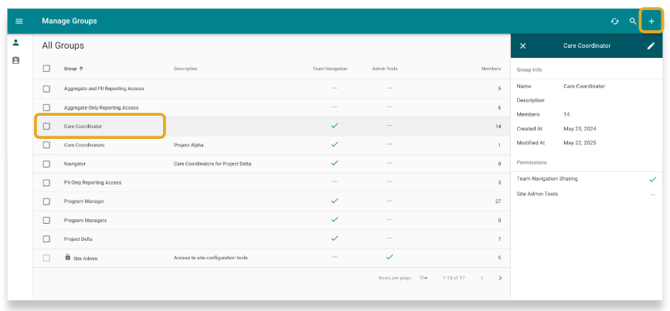
To edit a group, go to your Manage Groups dashboard. Here, you'll see all your standard and custom groups. Click on any group to see its details in a side panel. To make changes, just click the pencil icon in that panel.
On the Edit Group page, you'll see every user in that group. To remove someone, simply click Remove next to their name. This action will also remove their access to any shared folders, notes, or seeker profiles if Team Navigation is on.
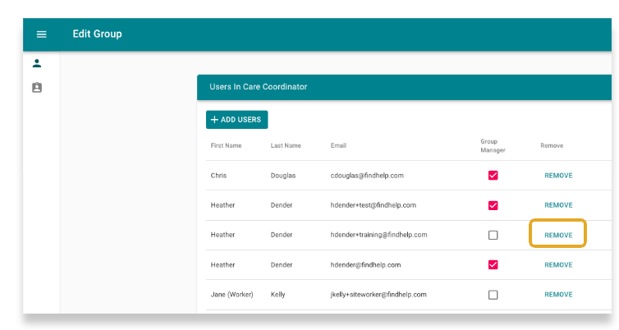
After removing the member, click Save to apply your changes.
Removing Group Manager Access
You can also un-assign a Group Manager if you no longer want them to have access to additional permissions on your platform.
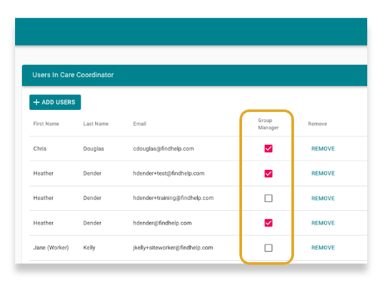
On the Edit Group page, you can easily remove a user's Group Manager status. In the Group Manager column, just uncheck the box next to their name. They'll remain a member of the group, but will no longer have the extra permissions of a Group Manager.
After removing Group Manager access, click Save to apply your changes.