
Starting Your Search
To find resources for someone, enter their zip code and what you’re looking for, then hit 'Search'. This filters results immediately, ensuring you only see programs and services available in their specific area.
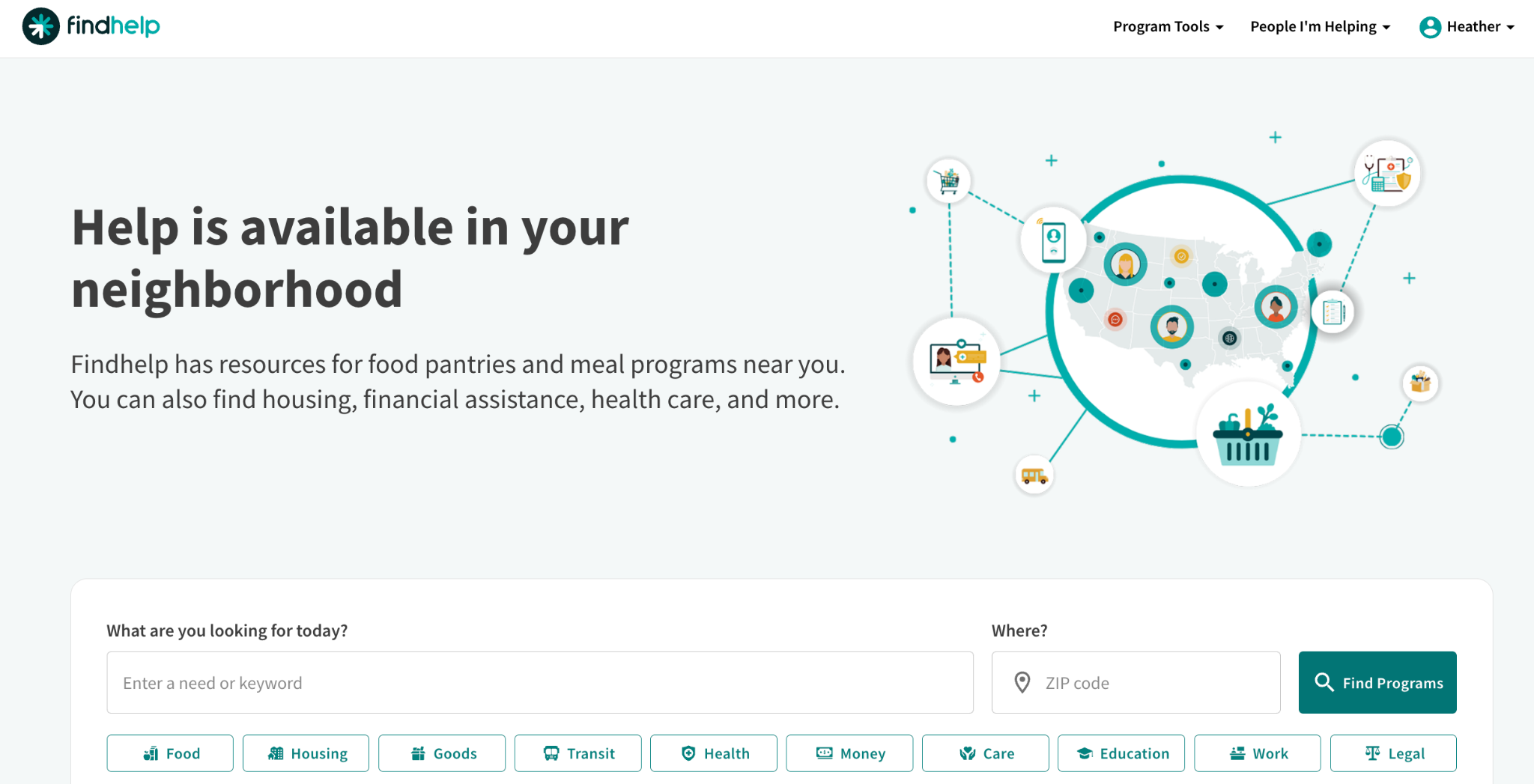
This will then take you to a navigation page where you will be able to change the zip code search area, translate the site into a preferred language, or use one of our many search tools to find a program resource.
Translating the Site
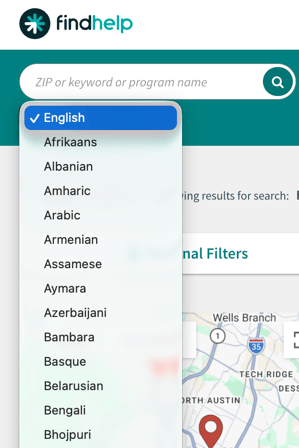
You can easily translate the Findhelp website into the language of the person you're helping.
Just click on "Select Languages" right below the keyword search bar. A list of languages from Google Translate will appear. Choose the language you want, then click the arrow next to it. The entire site will then translate!
Using the Keyword Search Bar
The keyword search bar is perfect if you know exactly what you're looking for, like a specific program name or type of help. Just type in your keywords. You can also change the search area. Simply type a different zip code into the search bar and hit Enter. The results will automatically update to show programs in that new location.
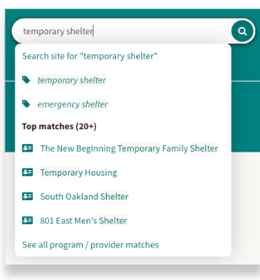
As you type in the keyword search bar, you'll see some suggestions pop up:
-
Tags: At the top, you'll see tags. Think of these as labels that help organize programs. Every program on Findhelp has tags that have been added to it. If you click on a tag that matches what you've typed, you'll see all programs linked to that specific tag.
-
Top Matches: Below the tags, you'll find top matches. These are specific programs that directly match your keyword search. Clicking on any of these will take you straight to that program's details.
Using Categories
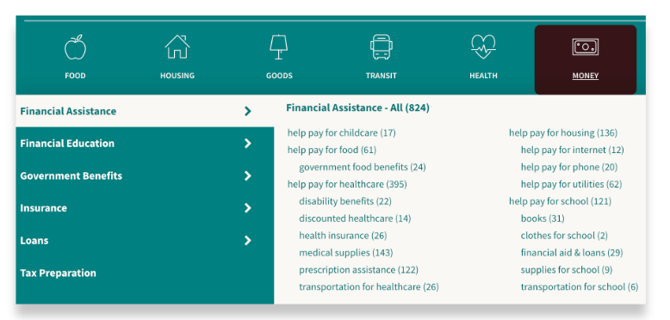
At the top of your screen, you'll see a toolbar with search categories, like "food" and "housing," all the way to "legal."

When you click on any of these main categories, you'll see a list of subcategories. Each of these subcategories might also have its own list of even more specific subcategories. These help you narrow down your search even further. You'll notice a number next to each subcategory; this number tells you how many programs are available in that specific area for your chosen location.
Using Search Filters
Finding the right resources quickly is key, and our search tool offers powerful filters to help you do just that. On your search results page, you'll find three dynamic filters that can significantly narrow down your options.
Personal Filters: Tailor Your Search to the Individual
These filters are all about the person you're assisting. They allow you to refine results based on specific situations or personal attributes. For instance, you can select an age group, income level, or an armed forces status. Applying any of these filters will instantly narrow your results to programs that support those individuals.
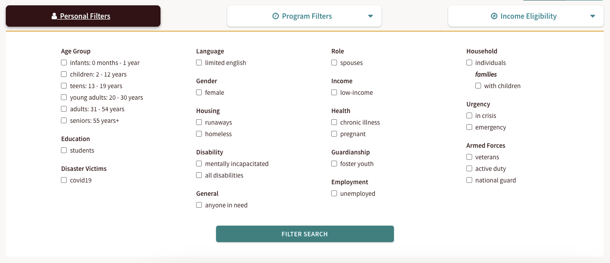
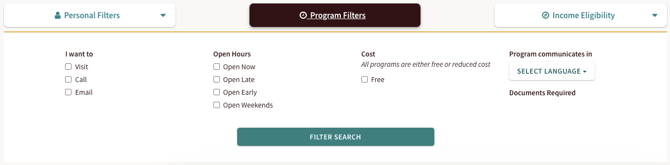
Program Filters: Pinpoint Specific Program Details
Looking for something specific about the program itself? The program filters are your go-to. This is where you can filter by program-specific criteria. For instance, if you're helping someone who wants to visit an in-person location right now, just select "I want to visit" and then "Open Now" under "Hours." You'll then only see programs that are currently open.
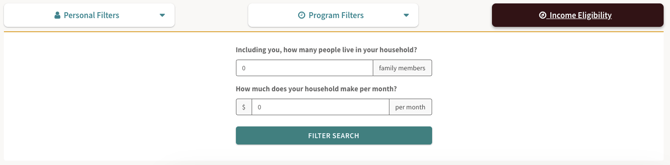
Income Eligibility Filter: Match Programs to Household Finances
The income eligibility filter helps you find programs based on a household's financial situation. You can search for programs by inputting the number of people in their household and the amount that household makes per month. You'll only see programs that match that specified income eligibility.
Removing Search Filters
All of these filters are dynamic, meaning they stay active even as you switch between different categories. They'll keep working until you manually clear them. You'll always know a filter is active because you'll see a tan box at the top of your search page.
To get rid of a single filter, just click the "x" next to its tag inside that tan box. If you want to start fresh with a new search, you can clear all filters with one click.

By utilizing these powerful filters, you can efficiently and effectively find the most relevant resources for the people you're helping.
🏆 Best Practices
- If you don’t find a resource you are looking for, try using a different search phrase.
- For example, if you are looking for a program that provides a specific kind of medical service, try broadening your search to medical services and see if a general program would still cover that specific need
- No results? Try searching a nearby zip code. If you do, click 'More Info' on the program card to ensure the service isn't restricted to local residents.
- If you aren’t getting results, make sure you have cleared your filters!