
You can easily add a Simple Search Box to your website or any other site where people might be looking for services.
When a search box is embedded, users can enter a ZIP code and, optionally, a keyword. When they click the search button, a new tab will open, showing the search results on your findhelp site.
-
For Findhelp Customers: The search box will direct users to your own branded site.
-
For Community Partners: Partners can add a search box that will direct users to search on findhelp.org.
You can customize the search box to match the look and feel of your website. You can also configure it to either require only a ZIP code or include an optional keyword search.
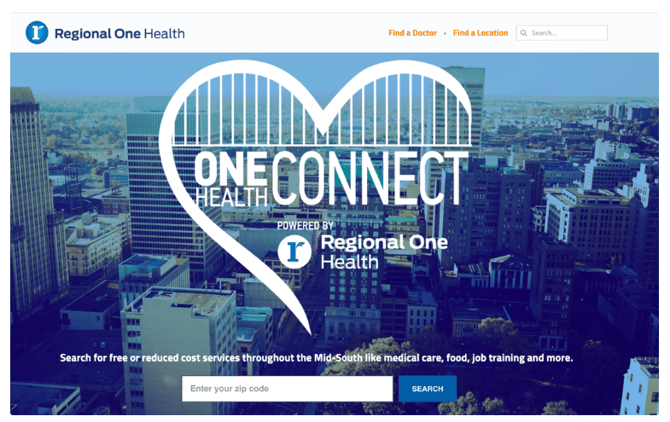
Example of a Simple Search Box
Sample Search Box
Below is an example of a sample iframe with minimal customizations.
<iframe src="https://www.findhelp.com/widget/v2/demo?ref=www.findhelp.com" width="100%" scrolling="no" frameborder="0"></iframe>

Creating a Simple Search Box
Search boxes are created by building a URL. When you create a simple search box, you need to include two parts in the URL so it works correctly.
Template: https://www.findhelp.com/widget/v2/[subdomain]?ref=[page URL]
1. Your Subdomain: The subdomain is your organization's unique Findhelp address. You must include this after "v2/" in the URL so the search box knows exactly where to send users for their search results.
2. The "Ref" Parameter: The "ref" parameter tells us the "referring location," which is the webpage where the search box is placed. This is crucial for accurate reporting. Because the search box is technically hosted by Findhelp, this parameter ensures we can show you exactly which pages on your site people are using the search box from.
Example url: https://www.findhelp.com/widget/v2/communitydemo?ref=community.fh.com
For accurate reporting, you'll need to coordinate with us to get a unique ref value for your search box. All examples in this guide use ref=enterprise.ab.com, but you must always use your own unique value for your search box to work correctly.
Combining Multiple Parameters
We have a list of supported parameters. Any additional parameters below may be added to the Search Box url to enable the associated features. You can combine any number of parameters from the above list in a single url. The syntax is that the first parameter after the base url must start with a “?” and every additional parameter must start with a “&”.
Example URL: https://www.findhelp.com/widget/v2/communitydemo?ref=community.fh.com&btn_color=FF0000
When adding a parameter, there must be a “&” between the value of the previous parameter, and the new parameter.
Example URL:
Customizing Your Simple Search Box with Supported Parameters
You can add extra features to your search box by including optional parameters in the URL. Just be sure to separate each new parameter with an "&" symbol.
Look and Feel
|
Parameter |
Valid Values |
Notes |
|
ref (required) |
A string that identifies the referring location. For the Findhelp widget, please use your organization’s URL. |
This value should be reviewed with your Findhelp Customer Success Manager to ensure validity and uniqueness. Widgets on partner sites should use the partner’s URL. |
|
btn_color |
A valid 3- or 6-digit hex color code ex. btn_color=FF0000 |
Make sure you do NOT include a leading # (e.g. “#FF0000”). This will result in an invalid URL. |
|
btn_text |
A short string to use as the search button text ex. btn_text=find+it |
The case of the text is ignored and automatically converted to all caps in the UI (e.g. “SEARCH”). |
|
btn_text_color |
A valid 3- or 6-digit hex color code |
Make sure you do NOT include a leading # (e.g. “#FF0000”). This will result in an invalid URL. |
|
btn_font_size |
Any valid text size ex. btn_font_size=24 |
Make sure you do NOT include text following the font size number (e.g. “20px”). This will result in no change. |
|
field_font_size |
The size of the text within the search placeholder |
Default size is 16 Make sure you do NOT include text following the font size number (e.g. “20px”). This will result in no change of the font size. |
|
form_desc |
A string to display above the search form |
Make sure this text is URL-encoded, as in the example. |
|
lang |
A valid ISO-639-1 language code, as supported by Google Translate ex. lang=es |
This setting has no effect on the widget itself. It’s passed along to the search page and used to translate the search results. |
|
org |
The URL-encoded name of the organization hosting the widget, if different from the default widget customer name |
Widgets on partner sites can use this parameter to override the organization name shown on the widget by default. |
|
postal_placeholder |
A string to display as the ghost text in the postal (zip) code field |
Make sure this text is URL-encoded, as in the example. |
|
search_placeholder |
A string to display as the ghost text in the text search field |
Make sure this text is URL-encoded, as in the example. This parameter only applies when the text_search is enabled. |
|
show_branding |
Set this to “true” to show your organization’s brand logo under the search button |
If there is no logo configured the parameter will be ignored. |
|
text_search |
Set this to “true” to show the text search box in addition to the zip code box ex. text_search=true |
This specifies whether or not to include a text search field in addition to the default postal code. |
|
top_level + service_tag |
Any valid Open Eligibility Human Services domain and service tag combination |
These settings are passed through the search box to pre-filter results down to the tag combination. These two parameters must be used together. If either one is omitted this setting will be ignored. |
|
website |
If your organization uses a custom URL, use this attribute to mask the findhelp.com subdomain. |
Be sure to include https:// in your text for this parameter. |
|
zip |
Any valid zip code to use as the default in the postal (zip) code field. ex. zip=78750 |
This zip code will override any text configured in postal_placeholder. |
Messaging
Search Boxes have limited options for how fonts are displayed. As a best practice, you may want to add messaging to your website itself, rather than the search box.
|
Parameter |
Valid values |
Notes |
|
form_desc |
A string to display above the search form. In partner Search Boxes this will replace the default “Need help? …” text Example: form_desc=Enter+a+zip+code+to+find+great+programs%21 (prints Enter a zip code to find great programs!) |
Make sure this text is url-encoded, as in the example. |
Search Box Behavior
|
Parameter |
Valid values |
Notes |
|
lang |
A valid ISO-639-1 language code, as supported by Google translate. Example: lang=es |
This setting doesn't change the look of the search box. Instead, it tells the Google Translate feature on the Findhelp search results page to automatically translate the content for the user. |
|
text_search |
The only valid value is “true”. Technically “false” is also supported, although in that case the parameter should simply be omitted. Example: text_search=true |
This specifies whether or not to display an alternate version of the search form that also includes a text search field, allowing the user to search for specific programs by name, in addition to the default postal code. |
|
top_level + service_tag |
Any valid Findhelp top-level category plus service tag combination. |
These settings have no effect on the Search Boxes itself, but are passed along in the search url to pre-filter the search results to match that tag combination. Note that these two parameters MUST be used together. If either one is omitted this setting will be ignored. |
|
website |
If you have a custom URL, use this attribute to mask the findhelp.com subdomain. Example: website=https://customurl.org |
Be sure to include https:// in the website |
|
zip |
Any valid zip code to use as the default in the postal (zip) code field (default = “Enter your zip code”).
Example: zip=78750 |
This is not placeholder text. Instead, it fills in a zip code where the user can simply click “search” and a search will be performed based on that zip code. |
How to Embed a Simple Search Box
You can add a Simple Search Box to any website by embedding an iframe with a specific URL. To add the search box, copy and paste the following code onto your webpage.
Iframe template: <iframe src="[search box URL]" width="100%" scrolling="no" frameborder="0"></iframe>
Iframe search box example: <iframe src="https://www.findhelp.com/widget/v2/communitydemo?ref=YourURL" width="100%" scrolling="no" frameborder="0"></iframe>
In the example above, the configured Search Box URL should be placed in between the quotes after src=.
iframe Customization Options
You can adjust the iframe's size to fit your website's design.
-
Width: The recommended default width is
100%, which lets the search box automatically adjust to the size of the screen. For a fixed size, you can change the width to a specific number, likewidth="500px". -
Height: You can also set a height if the search box looks cut off. A good starting point is
height="200px". You might need to adjust this number to fit your page's layout, especially on mobile, or to make room for error messages that appear if a user enters an invalid zip code. -
Layout: The search box layout automatically adjusts to the iframe's size. On smaller screens, the search field and button will stack on top of each other.
The "Sandbox" Attribute
The sandbox attribute is an optional security feature that you can add to the iframe. If you choose to use it, you must include the following options for the search box to work correctly:
sandbox="allow-forms allow-scripts allow-popups allow-popups-to-escape-sandbox"