
The People I'm Helping dashboard is your central hub for tracking the individuals you've assisted. It provides a complete list of everyone you've helped, along with key information and direct links to their Seeker Profiles. If your team has Team Navigation enabled, the dashboard will also show you who your teammates are helping, making it easy to collaborate.
Accessing the People I'm Helping Dashboard
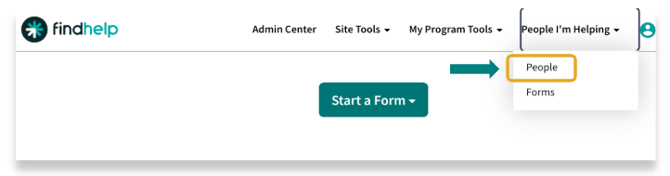
When you're signed into the site and have made a referral or submitted an assessment for a seeker, you can access their information by clicking "People I'm Helping" in the top menu, then selecting "People."
Dashboard Overview
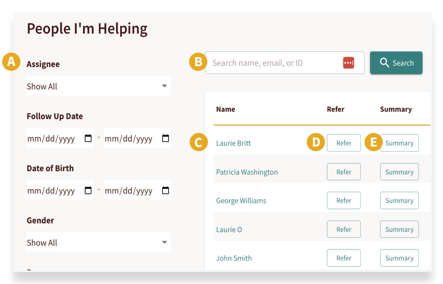
A. Dashboard Filters
B. Keyword Search
C. Link to a Seeker Profile
D. Quick Start Referral Button
E. Referral Summary Button
Customize and Filter Your "People I'm Helping" Dashboard
The columns on your People I'm Helping dashboard correspond to the fields in a Seeker Profile. You can sort any column by clicking on its name.
If you are an Enterprise or Enterprise+ customer, you can request Custom Seeker Profile Fields to capture additional information. These fields can also be displayed as columns on your dashboard. To add or change columns, contact your Customer Success Manager.
Standard Columns
The dashboard includes these standard fields:
- Name: The first and last name from the Seeker Profile.
- Refer: A quick link to start a program search for the person.
- Summary: Opens a summary of the Seeker Profile.
- Email: The email address on the profile.
- Phone number: The phone number on the profile.
- Assignee: The assigned navigator for follow-up. This can be set in the Seeker Profile.
Filtering Your Dashboard
You can use filters to narrow down the list of people you're helping. By default, you can filter by Assignee and Follow-Up Date.
If you have Custom Seeker Profile Fields enabled, you'll have more filtering options. Discrete fields like dates or dropdowns will create new filters. However, free text or short text fields are not currently searchable or filterable.
For example, you could filter by a custom field like a patient ID or a date of birth to find a specific person.
Using the People I’m Helping Dashboard
Once you have located the person you are helping, you may refer them to additional programs, access their full Profile, access a summary view of the profile or track updates for how you're helping that person.
The Seeker Profile
Seeker Profiles are automatically created whenever you send a referral, log a referral, or complete an assessment for an individual. You can access a seeker's profile by clicking on their name inside the People I'm Helping dashboard.
If your organization uses a Launch Integration, a profile is generated as soon as you access your site through it.
Who Can View a Seeker Profile?
A profile is visible to:
- The person who created it for someone seeking services.
- Other members of their group, if Team Navigation is enabled.
- Programs that receive referrals. They can only see the information shared in the referral form, along with any other referrals sent to their programs for the same person.
Quick Refer Button
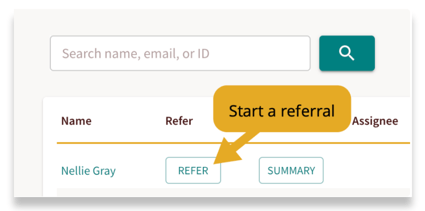
To quickly refer a person to a program, click the Refer button on the People I'm Helping dashboard. This will take you to a search screen while keeping the referral linked to their profile, ensuring it's saved correctly.
Summary Button
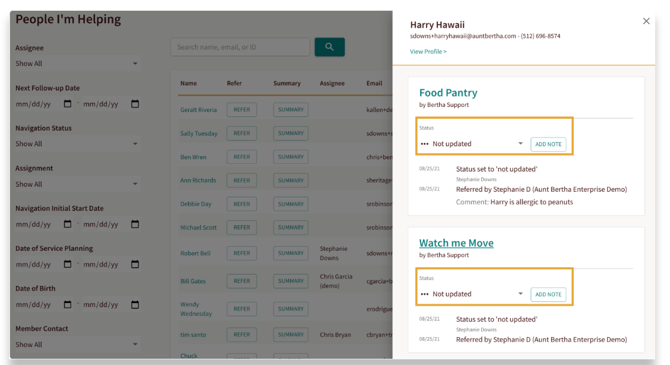
You can quickly view a summary of a Seeker Profile directly from the People I'm Helping dashboard. Simply click the Summary button next to the person's name.
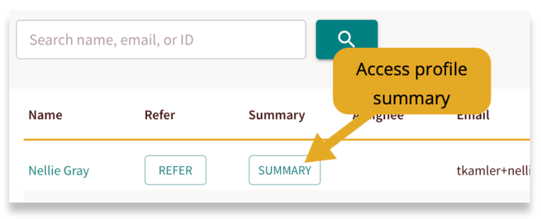
The summary view gives you a quick overview and includes:
- The person's name and contact information.
- A chronological list of their referrals, including the current status and any notes.
- The option to update a referral's status or add new notes.
- A link to the full profile for more details, such as goals, documents, and household information.
Want to see the People I'm Helping dashboard in action? Watch this video!