
Finding the right resources quickly is key, and our search tool offers powerful filters to help you do just that. On your search results page, you'll find three dynamic filters that can significantly narrow down your options. Let's explore each one:
Personal Filters: Tailor Your Search to the Individual
These filters are all about the person you're assisting. They allow you to refine results based on specific situations or personal attributes. For instance, you can select an age group, income level, or an armed forces status. Applying any of these filters will instantly narrow your results to programs that support those individuals.
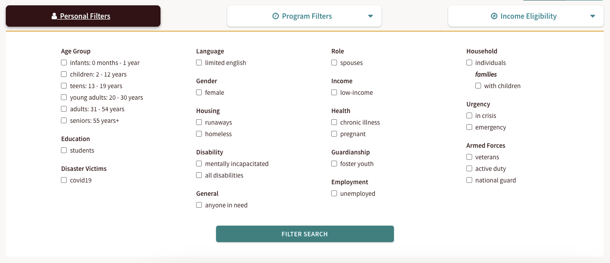
Program Filters: Pinpoint Specific Program Details
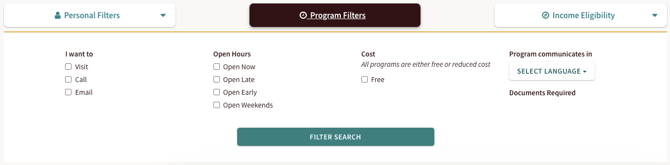
Looking for something specific about the program itself? The program filters are your go-to. This is where you can filter by program-specific criteria. For instance, if you're helping someone who wants to visit an in-person location right now, just select "I want to visit" and then "Open Now" under "Hours." You'll then only see programs that are currently open.
Income Eligibility Filter: Match Programs to Household Finances
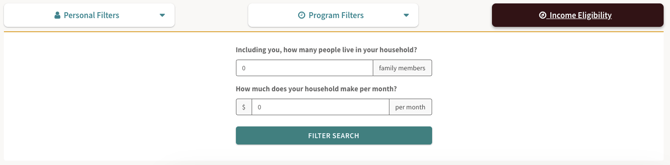
The income eligibility filter helps you find programs based on a household's financial situation. You can search for programs by inputting the number of people in their household and the amount that household makes per month. You'll only see programs that match that specified income eligibility.
Removing Search Filters
All of these filters are dynamic, meaning they stay active even as you switch between different categories. They'll keep working until you manually clear them. You'll always know a filter is active because you'll see a tan box at the top of your search page.
To get rid of a single filter, just click the "x" next to its tag inside that tan box. If you want to start fresh with a new search, you can clear all filters with one click.

By utilizing these powerful filters, you can efficiently and effectively find the most relevant resources for the people you're helping.
Understanding Your Search Results
After you search using keywords or categories, you'll see a page with your results.
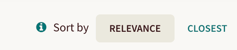
By default, these results are sorted by relevance – meaning what the system thinks is most helpful to you. But you can change this! You can sort the results to show what's closest to the zip code you entered instead.
To learn more about how relevance works, review the knowledge base article: Why Are Certain Programs Higher in My Search Results?
🏆 Best Practices
- If you aren’t getting results, make sure you have cleared your filters!
- If you aren’t receiving relevant results, try using a filter or a subcategory.
- All of our programs have tags attached to them. Using a filter could help you find the program you are looking for.