
Flyouts are small, pop-up messages that appear in the bottom right corner of your findhelp site. They let you share a specific call to action with your users, based on what they're searching for or where they're located.
Customizing Your Site with Flyouts
You can configure a flyout to appear only when a user takes a specific action, such as searching for a certain term within a particular area.
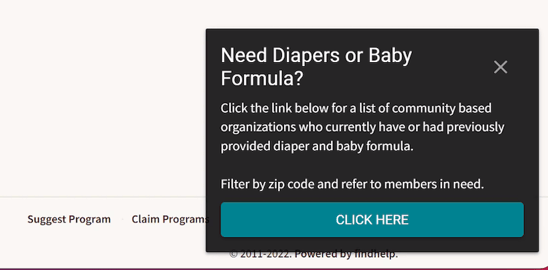
Where Flyouts Appear
Flyouts can be configured to appear on the following pages of your Findhelp site:
- Home page
- Search results pages
- Program and provider details pages
- Your private and public favorite folders
Flyout Triggers
Flyouts can be triggered to appear by an action or by a combination of actions. Flyouts can be triggered by the following specifications.
- Location: The geographical area where the Flyout should appear based on the zip code searched (State, County, or Postal)
- Search Terms: These are the keyword searches or tags that would trigger the Flyout
- Day and Time: Days of the week and hours when the Flyout will appear. This could be used for working hours of hotlines or organizations where your Flyout links
Example: If your organization offers a 24/7 hotline for domestic violence support, you could set up a flyout to appear with a call to action to dial your number. In this case, the flyout would appear when a user searches for a term like "safe housing."
Important Flyout Requirements
The look and feel of a flyout, including its color and placement on the page, are not customizable. Every flyout must have a call-to-action. This can be a button that links to a website, an email, or a phone number. You can also use our standard "thumbs up/thumbs down" survey. Finally, every flyout needs a trigger to tell the system when it should appear.
Configuration Options
A flyout box is made up of four key sections that you can customize to create your message.
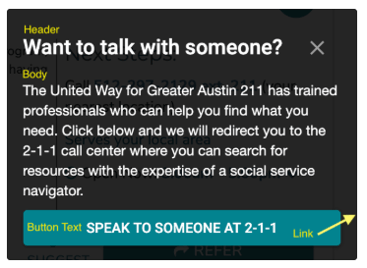
- Flyout Header: This is the title at the very top of the flyout. It has a maximum limit of 30 characters.
- Flyout Body: This is the main message of the flyout. It has a maximum limit of 300 characters and can include links using HTML formatting.
- Flyout Button Text: These are the words on the blue call-to-action button. It has a maximum limit of 30 characters.
- Flyout Button Link: This is the URL where users are taken after they click the button. It can be a website, an email address, or a phone number.
To set up a flyout, please contact your Customer Success Manager!