
A Screener is a customizable intake questionnaire that allows your organization to gather specific information from seekers as a referral is being submitted. By integrating these questions directly into their submission, you can instantly determine if a seeker meets your program’s specific criteria, before a referral is even made.
Why Use a Screener?
-
Faster Eligibility: Collect the exact details you need upfront to qualify seekers immediately, cutting out unnecessary back-and-forth communication.
-
Data-Driven Insights: Use the Screener Dashboard to track trends and measure impact. These metrics are ready-made for grant proposals, board presentations, and annual reviews.
-
Complete Customization: Build a form that fits your specific workflow. Create your own questions or choose from over 80 pre-built templates to launch in minutes.
-
Instant Seeker Guidance: Set up custom messages to provide seekers with immediate "next steps." If they don't qualify, you can automatically point them toward alternative resources.
How Does a Screener Work?
When a Screener is active, it appears immediately after the initial referral form is submitted. Once a navigator or seeker clicks "Next," they are automatically directed to your custom questions.
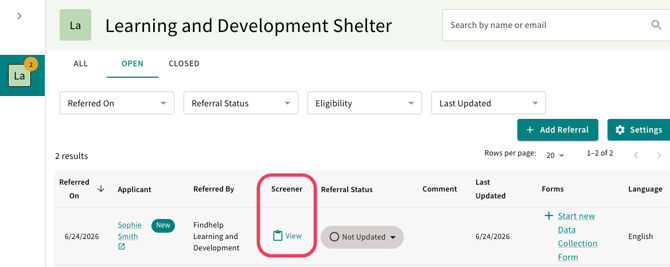
After they complete the Screener, the full set of answers is attached to the referral and can be viewed directly within your Inbound Referral Dashboard.
Setting Up A Screener
Follow these steps to enable and customize a Screener for your program:
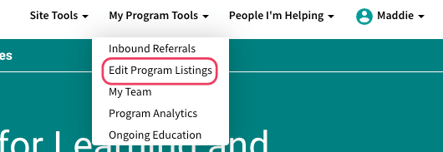
Step 1: Sign into your account and navigate to the My Program Tools dashboard. Then select Edit My Program Listings and find the specific program you want to update.
Step 2: Click on the Contact Settings tab for that program. Then locate the drop down menu: "When someone lets us know they are interested in your program, what should we do?"

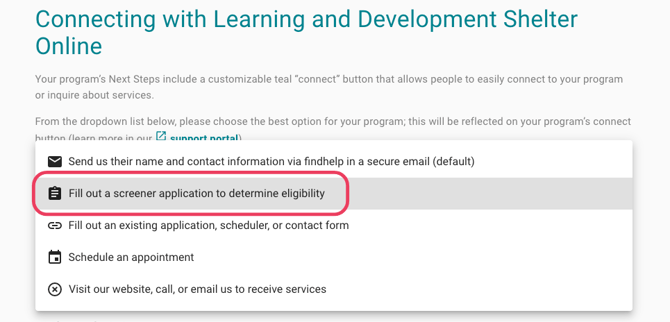
Step 3: Select "Gather more information with a screener".
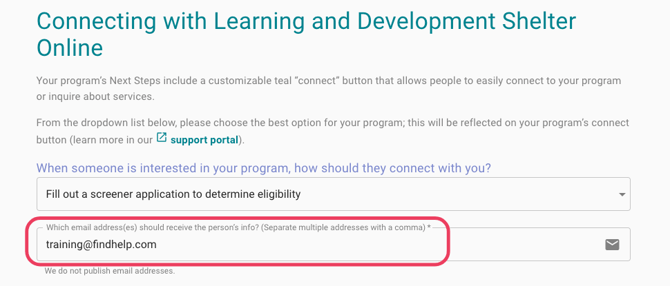
Step 3: Enter the email address(es) that should be notified when a screener is submitted.
Step 4: Scroll down to add, remove, or reorder questions and sections.
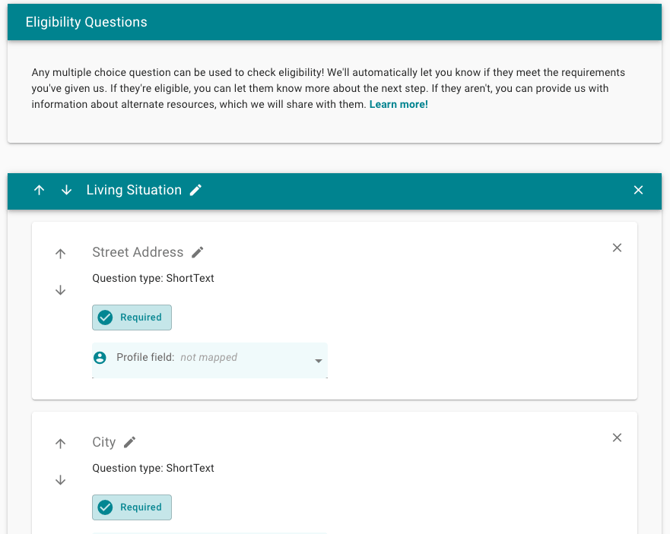
You can tailor your Screener to collect exactly what you need from every referral. By adding your own questions, you can confirm eligibility requirements before a seeker even reaches your team.
To prevent incomplete forms, mark your most important questions as Required. This ensures the person making the referral provides all necessary information before they can click submit. Using these tools helps you filter for the right fit and manage your referrals more efficiently.
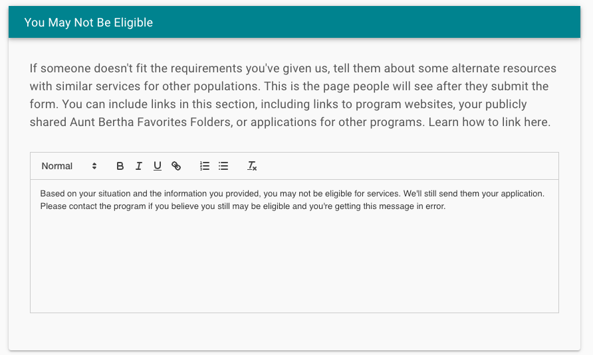
You can notify seekers if they don't meet your program’s requirements. Providing this immediate feedback saves them time, allowing them to find other resources instantly rather than waiting for a response from your team.
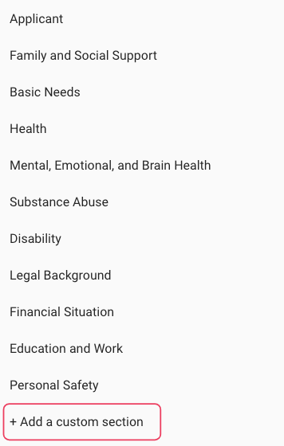
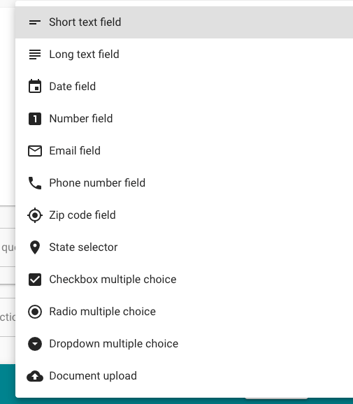
You can add custom sections to collect specific data like phone numbers, dates, or email addresses. You can also include a file upload field, allowing seekers to attach documents directly to their referral.
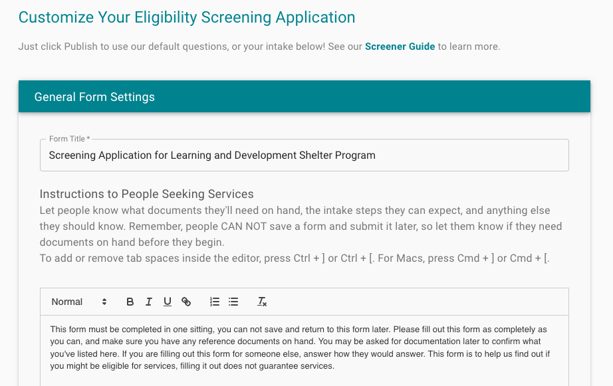
Once you have the screener customize the way you want it, click publish!
Note on Saving: You cannot save a "draft" of a screener. Once you start, you must click Publish to save your changes. However, you can return and edit a published screener at any time.
Best Practices
To get the most out of Findhelp Screeners, use these guidelines to streamline your intake process and improve the seeker experience.
-
Keep it Brief: Only ask for the minimum information needed to determine eligibility. Shorter forms have higher completion rates.
-
Reduce Double Documentation: If you keep the "Basic Questions" section titled as-is, the system will automatically pull in answers from the initial screen, saving the seeker from typing the same info twice.
-
Use Document Uploads: Need a photo ID or proof of income? You can add a File Upload option within the custom question section to collect documents digitally.
Key Considerations
Managing Referrals
-
Referrals Still Go Through: If you mark a question as "eligibility-determining," you will still receive the referral regardless of their answer. The screener flags eligibility for you, but your team makes the final decision to accept or decline the seeker.
-
Custom Messaging: If a seeker’s answers suggest they aren't a fit, customize the "You may not be eligible" response. Use this space to recommend other local programs or next steps.
Handling Incomplete Forms - Updated July 2026
- As of July 1, 2026: When a screener is set up for a program, the referral will no longer be created or sent until the screener is fully completed and submitted.
-
Unsubmitted Screeners: If you have historically received an inbound referral without an attached screener, it means the seeker started the form but did not finish or submit it.
-
Recommended Action: If the screener is required for your process, mark these referrals as "Ineligible" since the necessary information was not provided.