
Seeker Texting allows navigators to reach out to seekers directly via free-text SMS messages. This feature streamlines communication, enabling navigators to provide information, follow up on referrals, and coordinate care more effectively.
Benefits of Utilizing Seeker Texting
This feature is useful for:
- Allowing seekers ask about referrals or appointments
- Creating back-and-forth communication between navigators and Seekers
- Giving Seekers a way to share feedback on services, including updates on their referral status
Article Quick Links
- How to Send a Message
- Adding a Seeker Phone Number
- Opt Out Messaging
- New Message Notifications
- Important Tips and Tricks
How to Send a Message
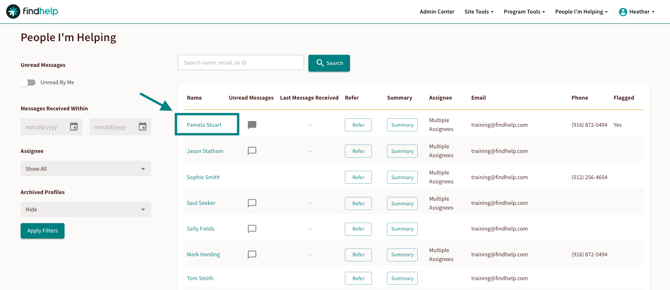
Step 1: Access the profile of the person you want to message by using the People I’m Helping Dashboard. Click on their name to enter their Seeker Profile.
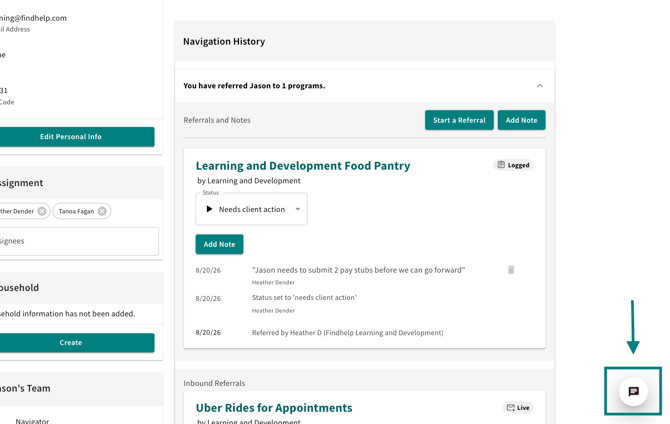
Step 2: The SMS widget will appear at the bottom right of a seeker profile record. You will see the chat message icon. Clicking on this button can let you start a new conversation with your seeker, or view an existing one with others in your organization who are participating in their care.
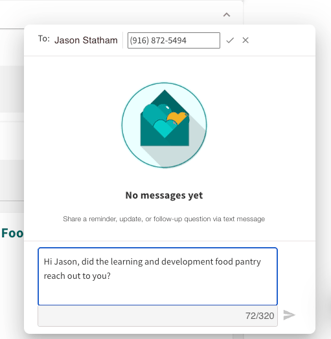
Step 3: You have up to 320 characters for your message. When you are ready, click "Send" to deliver it.
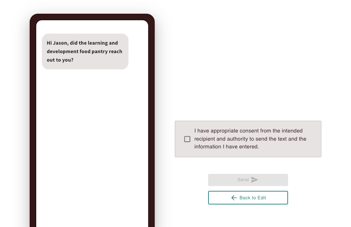
Step 4: A preview of your message will appear, along with a checkbox to confirm that you have obtained the seeker's consent to send SMS messages.
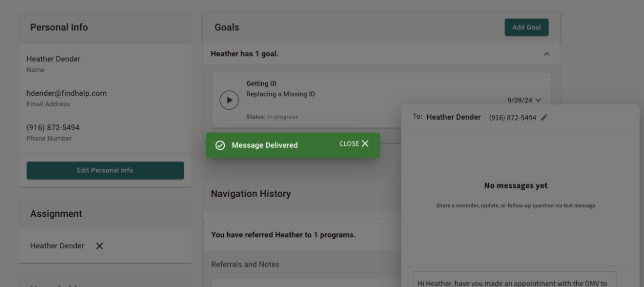
You will get a notification that your message has been delivered!
Adding a Phone Number
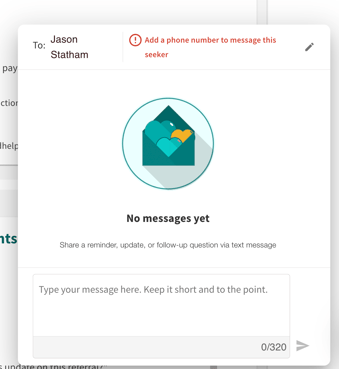
If a number is not added to the seeker’s profile, you will be prompted to enter one in before you can send a message.
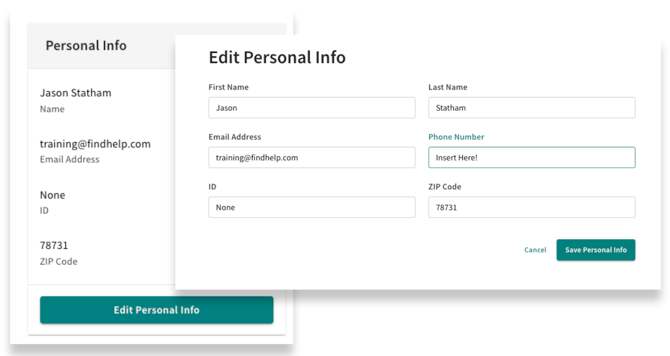
You can add a phone number to the seeker profile by clicking on 'Edit Personal Info' and adding the phone number into the phone number field. Once saved, this number will automatically appear in the messaging widget.
Seeker Opt Out
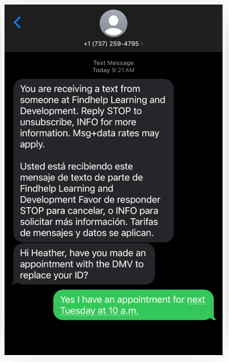
The seeker receives the message you sent. They can respond to it, which you will see in the messaging widget.
They will only receive the first notice about who is texting them and how to opt out at the start of a new conversation.
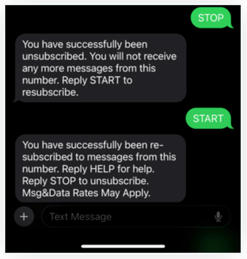
A seeker can reply STOP if they no longer want to receive messages. They will receive a message letting them know they have unsubscribed. No further messages from the widget will be sent to them.
If a seeker wants to re-enable SMS messaging, they can reply back to the thread with START. This will then allow for messages to be sent through the widget.
New Message Notifications
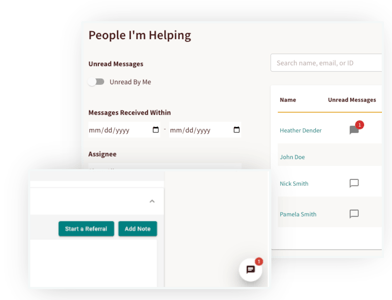
You will receive a notification in the "People I’m Helping" dashboard indicating that you have a new message from the seeker. Click on the notification to open the seeker’s profile and access the SMS widget to read the message.
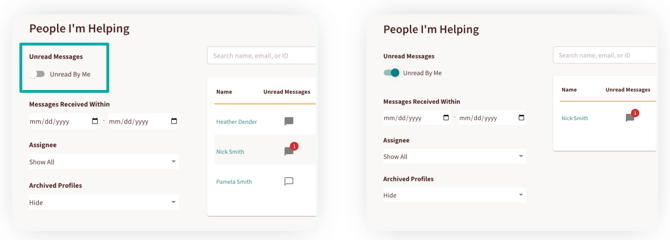
Inside the People I’m Helping dashboard is a filter you can use to only see seeker profiles who have messages that haven’t been read yet.
Important Things to Note!
- A phone number has to be added for the SMS widget to send a message
- If the seeker changes their phone number, their history will still be attached to their profile.
- To see other seeker SMS messaging threads, make sure you are added to the right group by your Site Administrator.