
A reference tag is a simple yet powerful tool used to monitor the usage of specific URLs. By incorporating these tags into your marketing and integration strategies, you can easily track engagement and measure the success of different outreach efforts.
How Reference Tags Work
Reference tags are created by appending a specific string of text to the end of a Findhelp URL. This allows you to differentiate your data within Findhelp Analytics.
Why Use Reference Tags?
-
Low-Tech & Accessible: No coding knowledge is required; tags can be configured by almost anyone in your organization.
-
Automatic Reporting: Once a tag is used, it is automatically captured and visible in your findhelp reports.
-
Granular Insights: Easily distinguish between traffic coming from an email campaign, a website button, or a partner referral.
How to Create a Reference Tag
Reference tags are an incredibly low-tech solution that can be configured by almost anyone at your organization and they are automatically visible in your Findhelp reports.
To create a reference tag, add text to the end of your Findhelp site URL:
https://sitename.findhelp.com/?ref=InsertTagHere.
Reference Tag Examples
Patient Portal Links
Our best practice for patient portal links is to add a reference tag, like /?ref=MyChart, to track usage.
MyChart Announcements
When going live with patient portal links, create an announcement to put the portal in front of patients. We recommend using a different reference tag, like /?ref=MyChart_Announcement to track the independent impact of the announcement.
QR Codes
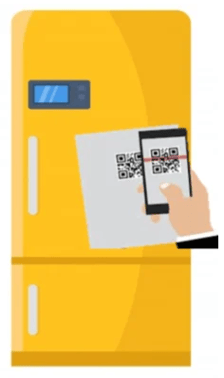
QR codes are an easy-to-create visual representation of a webpage link that can be used as a part of physical marketing materials and scanned by seekers or staff on their cell phones.
To track the impact of your physical advertising, add QR codes to places like:
-
A community free food fridge (/?ref=community_fridge)
-
Post-appointment handouts (/?ref=AfterVisitSummary)
-
Waiting room / lobby signs (/?ref=lobby)
Social Media / Digital Marketing Materials
Most digital marketing campaigns will contain a link to your branded community site. Use a reference tag like /?ref=Instagram_Reel and a URL-shortening tool to help evaluate the outcomes of specific campaigns.
How to Report on Reference Tags
.png?width=313&height=237&name=image%20(20).png)
Findhelp dashboards contain the Referrer_Parameter_Filter which allows you to filter results for a specific reference tag for a specific site.
i.e. ‘How many searches resulted from the MyChart announcement that linked to our Findhelp community site?’.
The following dashboards have a Referrer_Parameter_Filter:
- Site Activity
- Search Activity
Default Reference Tags
Some reference tags are automatically created as a part of regular workflows and tools. The following table describes the most common reference tags you might see in your Findhelp analytics:
|
Reference Tag |
Description |
|---|---|
|
Referral for other skr text |
A user accessed your site via a texted referral made on their behalf by a navigator |
|
Referral for self skr text |
A user accessed your site via a texted referral they made to themselves |
|
Referral for self skr email |
A user accessed your site via an emailed referral they made on their own behalf |
|
Share Favorites Link |
A user accessed your site via a shared favorite folder link |
|
Share program email |
A user accessed your site through a program which was shared via email |
|
Share program text |
A user accessed your site through a program which was shared via text |