
Site Administrators will have access to the Admin Center where they can make updates to customize their site. In Site Settings, you can do the following:
- Change the setting for unclaimed program referrals on your site
- Change notification settings for when referral status update emails are sent out
- Boost tags that are on your site
- And update the referral consent prompt that shows on live referral forms
Accessing the Admin Center
You can access the Admin Center by clicking on it in your top toolbar. You will only see this option if you are signed in. Then click on Site Settings.
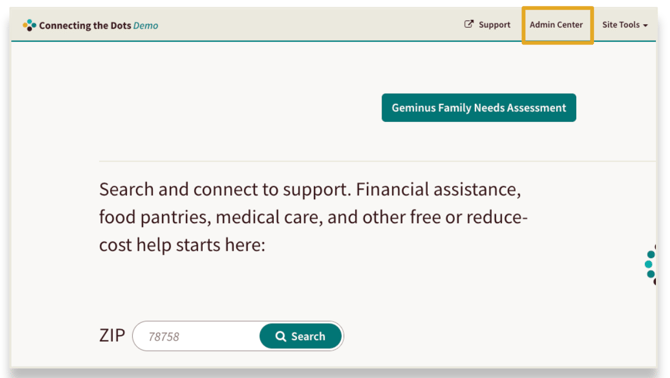
From here you will have several settings you can customize based on the needs of your organization. They are all listed below:
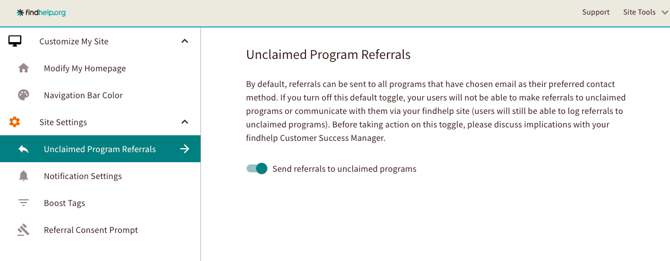
Unclaimed Program Referrals
This toggle controls whether your users can communicate with programs that have not yet claimed their listing.
-
If Enabled (Default): Referrals can be sent to all programs with an email contact method.
-
If Disabled: Users cannot send active referrals or messages to unclaimed programs, though they may still "log" past activity.
Important: Changing this setting significantly alters the user experience. Please discuss the implications with your Customer Success Manager before proceeding.
Notification Settings
Inside the notification settings, you can control when your staff receives email updates about the status of referrals.
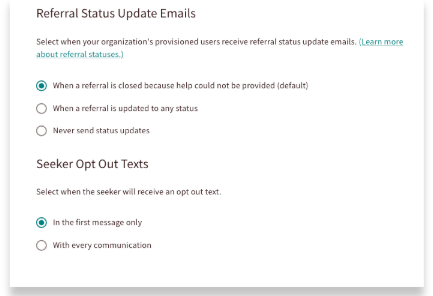
- When the referral loop is closed: Emails are sent only when a referral is marked with a "closed loop" status, such as Got Help or Referred Elsewhere.
- Any status change: An email is sent for every change in a referral's status.
- Never: No email updates will be sent.
Two Way Seeker Notifications
You can also change the settings when Two Way Seeker Messaging is enabled relating to the opt out message the seeker receives.
Boost Tags
You can boost up to 10 service or situation tags on your site. This is a great way to highlight specific program types, like shelter programs during a weather-related emergency. When you boost a tag, any program with that tag will appear higher in relevant search results, ensuring users see those resources first.
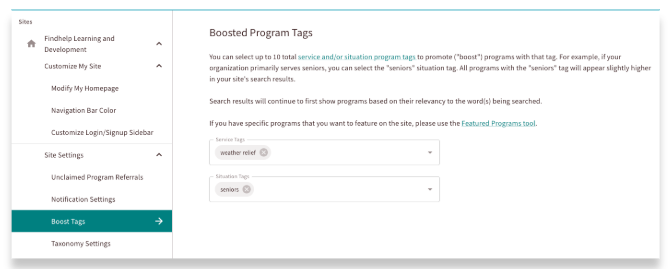
Review this article for step-by-step instructions on how to add, edit, or remove Boost Tags across your platform
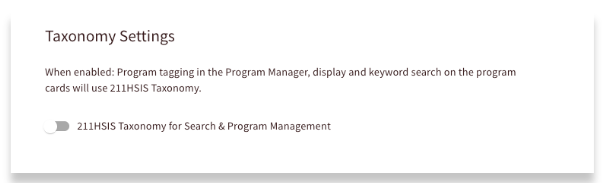
Taxonomy
You can choose to enable the 211 HSIS taxonomy as an alternative to the standard Findhelp taxonomy. Once enabled, these standardized category labels will appear directly on your program cards.
Referral Consent Prompt
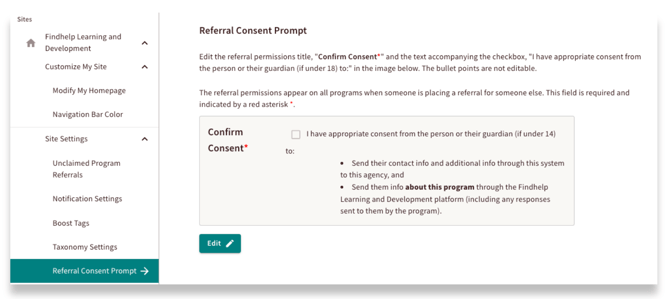
You can customize the text next to the "Referral Consent" checkbox when making a referral for someone else. This is helpful if a staff member has the legal right to create a referral for a client, even if they don't have the client's direct consent.
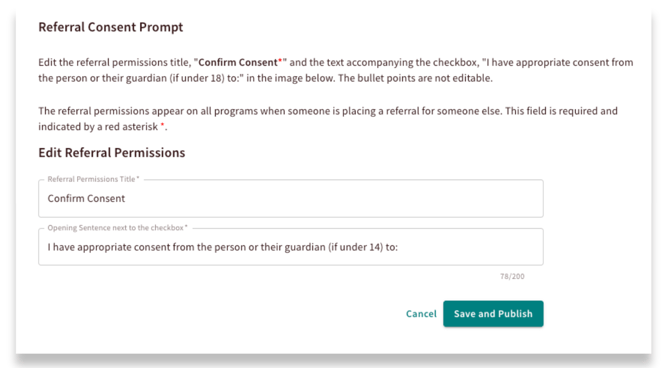
To edit the Referral Consent Prompt, click the Edit button and update the text.
When you are done with your edits, click Save and Publish.
Referral Authorization
You can implement an authorization workflow for referrals initiated by your navigators. When this feature is enabled, referrals are held for internal review and will only be sent to the provider once a designated team member has approved them.
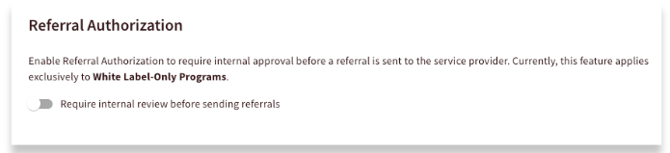
If you are interested in implementing this for your site, review our Referral Authorization feature article and talk to your Customer Success Manager!
Organization Information
If you have reimbursement configured in your platform, you will use this section to manage the financial entities linked to your site. This data serves as the foundation for your auditing and reimbursement processes. Because changes to this configuration directly affect financial reporting and the stability of third-party integrations, please ensure all information is verified and accurate before saving.

If you are interested in implementing this for your site, review our Reimbursement Workflow feature article and talk to your Customer Success Manager!